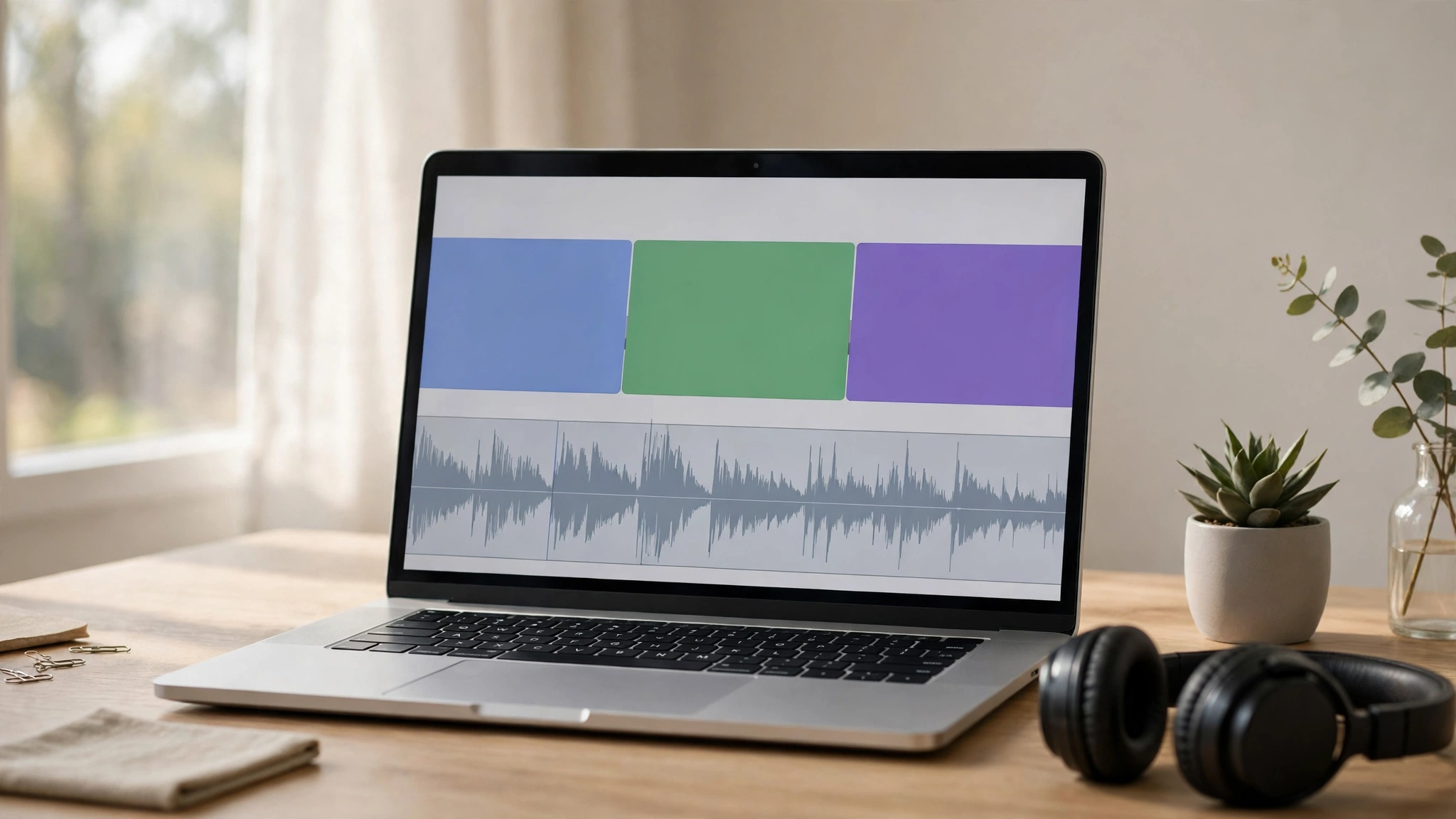
How to Extract Audio from Video: The Short Answer
To extract audio from video, open the video in a free tool and export just its sound track. For a one-off file, use a free online audio extractor such as Online Audio Converter or Audio Extractor — upload the video, pick MP3, and download the result. For regular work, the free desktop player VLC does the same job offline with no upload limits. On a phone, use your device’s built-in tools: iPhone Shortcuts or a free video-to-MP3 app on Android. Save the audio as MP3 for everyday listening, or WAV if you plan to edit it further.
Table of Contents
Key Takeaways
- Extracting audio means saving a video’s sound track as its own audio file — the picture is discarded, the sound is kept.
- Online tools are fastest for one small file; desktop tools are better for large files, batches, and privacy.
- MP3 is the right format for listening and sharing; WAV is the right format for editing.
- Only extract audio from videos you own or have permission to use — pulling audio from someone else’s YouTube video breaks YouTube’s terms.
- VLC, Audacity, and FFmpeg are all free and do the job well on Windows and Mac.
What Does It Mean to Extract Audio from Video?
Every video file carries at least two streams: the picture and the sound. Extracting audio from video means pulling the sound stream out and saving it as a standalone audio file, usually an MP3, WAV, or AAC file. The video itself is not changed — you simply end up with a second file that contains only the sound.
People do this for practical reasons: saving a lecture to listen to on a walk, keeping the music from a family video, turning a webinar into a podcast episode, or getting clean audio into an editor. If your next step is turning speech into text, our guide to free AI transcription tools picks up where this one leaves off.
Pick Your Method First: Which Way to Extract Audio from Video?
There is no single best way to extract audio from video — the right method depends on the file and the situation. Use this table to decide in seconds.
| Situation | Best method | Why |
|---|---|---|
| One small video, quick job | Online audio extractor | Nothing to install; done in a minute |
| Large file or many files | VLC or FFmpeg on desktop | No upload limits, batch processing, private |
| You want to edit the audio after | Audacity | Extract and edit in one free app |
| On an iPhone | Shortcuts or a video-to-MP3 app | Built-in, no computer needed |
| On an Android phone | Video to MP3 app | Fast, works offline once installed |
| Audio is inside an edit already | Your video editor (CapCut, Canva) | Detach the audio track on the timeline |
How to Extract Audio from Video Online (No Install)
Online extractors are the fastest route when the file is small and you only need to do this once. The steps are nearly identical on every service:
- Open Online Audio Converter or Audio Extractor in your browser.
- Upload your video file (MP4, MOV, AVI, and most other formats work).
- Choose MP3 as the output format — it plays everywhere.
- Pick a quality setting (192 kbps or higher sounds good for speech and music).
- Click convert, then download the audio file.
Two honest limits: free online tools cap the file size you can upload, and your video leaves your computer — do not upload private or sensitive recordings. If the file is large or private, use a desktop tool instead.
How to Extract Audio from Video on Windows and Mac with VLC
VLC is a free, open-source media player that can also convert files, and it handles this job without uploading anything. It works the same on Windows, Mac, and Linux.
- Open VLC and go to Media, then Convert / Save.
- Click Add and choose your video file.
- Click Convert / Save, then choose Audio – MP3 as the profile.
- Click Browse, pick a destination and a file name ending in .mp3.
- Click Start. VLC writes the audio file in a few seconds to a few minutes, depending on length.
VLC is also the simplest answer if you need to extract audio from video on Windows in bulk: repeat the steps for each file, or use a playlist conversion. For a full comparison of free editing software, see our best free video editing software guide — several of those editors can detach audio too.
How to Extract Audio from Video with Audacity (and Edit It Too)
If you plan to clean up the audio — remove background noise, cut pauses, or boost quiet speech — extract it straight into Audacity, the free open-source audio editor.
- Install Audacity and the free FFmpeg library it asks for on first video import (Audacity’s own help pages explain the one-time setup).
- Drag your video file into Audacity. It imports the audio track and ignores the picture.
- Trim, clean, or normalise the audio as needed.
- Choose File, then Export, then Export as MP3 (or WAV for editing later).
This is the best route for podcasters and students: the audio from a recorded lecture lands in an editor where you can cut the ums and the ten minutes of silence at the start.
How to Extract Audio from Video with FFmpeg (Power Users)
FFmpeg is a free command-line tool that media professionals use for exactly this kind of job. It is the fastest option for batch work, and it can copy the audio stream without re-encoding it, which means zero quality loss.
The basic command is: ffmpeg -i input.mp4 -vn -c:a libmp3lame -q:a 2 output.mp3. Replace input.mp4 and output.mp3 with your file names. The -vn flag drops the video, and the rest sets good-quality MP3 output. If the video already contains MP3 audio, you can copy it untouched with ffmpeg -i input.mp4 -vn -c:a copy output.mp3.
FFmpeg is not friendly if you have never used a terminal, and that is fine — VLC and Audacity cover the same job with buttons instead of commands.
How to Extract Audio from Video on iPhone
On an iPhone you have two good options, and neither needs a computer:
- Shortcuts (built in, free): open the Shortcuts app, create a shortcut that takes a video as input, uses the “Encode Media” action set to Audio Only, and saves the result to Files. Run it from the share sheet on any video.
- A video-to-MP3 app: search the App Store for “video to MP3” and pick a well-reviewed free app. These convert in a couple of taps but often show ads and may limit batch conversions on the free tier.
If the video is already open in an editor such as CapCut, you can also detach the audio on the timeline and export audio only — handy when you are already editing a clip for social media.
How to Extract Audio from Video on Android
Android works the same way as iPhone, minus the built-in shortcut:
- Install a free “Video to MP3” converter from Google Play — check recent reviews and the permissions it asks for before installing.
- Open the app, pick your video, and choose MP3 as the output.
- Save the audio to your phone’s music folder.
Alternatively, upload the video to Canva or CapCut in your mobile browser, detach the audio track, and export it — useful when the clip is already part of a design or edit.
What Format Should I Save Extracted Audio In — MP3 or WAV?
The format matters, and the right choice depends on what happens next:
| Format | Use it when | Trade-off |
|---|---|---|
| MP3 | Listening, sharing, uploading, podcasts | Small files; slight quality loss from compression |
| WAV | Editing, archiving, professional use | Large files; no quality loss |
| AAC / M4A | Apple devices and apps | Good quality at small size; less universal than MP3 |
| FLAC | Archiving music at full quality | Lossless but large; not all players support it |
A practical rule: if you will edit the audio, save WAV first and export MP3 at the end. If you only want to listen, MP3 at 192 kbps or higher is enough — most people cannot hear the difference from the original at that bitrate.
How to Keep the Quality High When You Extract Audio
- Do not re-encode twice. Extract once at a good bitrate and keep that file as your master copy.
- Match the source. If the video’s audio is already MP3 or AAC, copying the stream (as FFmpeg can) loses nothing; converting it again loses a little.
- Check the result. Play the first and last ten seconds — a failed extraction usually shows up as silence or a truncated ending.
- Mind the source quality. Extraction cannot improve bad audio; a muffled phone recording stays muffled. Our how to make an AI video guide covers recording clean audio in the first place.
Is It Legal to Extract Audio from a YouTube Video?
Extracting audio is legal when the video is yours, when you have the owner’s permission, or when the content is licensed for reuse. Downloading or extracting audio from YouTube videos you do not own violates YouTube’s terms of service, even if a tool makes it easy — and it can infringe the creator’s copyright. The same rule applies to music, films, and TV clips: if you did not make it and do not have a licence, do not take the audio.
For your own content the picture is simple. Recordings of your lectures, meetings, interviews, and family videos are yours to extract, edit, and share as you wish.
What Is the Difference Between Extracting Audio and Converting a Video to MP3?
Almost none — they are the same job described two ways. “Extracting audio” usually means saving the sound track as its own file, while “converting video to MP3” is the same action named after the output format. Some tools offer both phrases on the same button. If a tool promises to “convert video to audio”, it is an audio extractor.
Frequently Asked Questions
What is the best free way to extract audio from a video?
For one small file, a free online extractor such as Online Audio Converter is fastest. For regular use, VLC is the best free option: it works offline, has no file-size cap, and runs on Windows, Mac, and Linux.
Can I extract audio from a video online without installing anything?
Yes. Free browser tools such as Audio Extractor and Online Audio Converter convert a video to MP3 in a few clicks. They work best on files under their free size limit, and you should avoid uploading private recordings.
How do I extract audio from a video on iPhone?
Use the built-in Shortcuts app with an “Encode Media — Audio Only” action, or install a free video-to-MP3 app from the App Store. Both save the audio to your Files app.
How do I extract audio from a video on Android?
Install a free Video to MP3 converter from Google Play, pick your video, choose MP3, and save. Check recent reviews and permissions before installing any converter app.
What format should I save extracted audio in?
MP3 for listening and sharing, WAV for editing or archiving. MP3 at 192 kbps or higher sounds good for speech and music and plays on every device.
Can I extract audio from a YouTube video?
Only from videos you own or have permission to use. Extracting audio from other people’s YouTube videos violates YouTube’s terms and can infringe copyright.
The Bottom Line
Extracting audio from video is a five-minute job once you know the method that fits your situation: an online extractor for a quick one-off, VLC or Audacity on desktop for serious work, and a phone app or shortcut when you are away from your computer. Pick MP3 for listening and WAV for editing, check the first and last seconds of the result, and stick to videos you own or have permission to use. If you want to go further with the audio you just saved, our free transcription tools guide shows how to turn it into text — and if you are building video content around it, the best AI tools roundup on Digital Discoverist is a good place to find the rest of your toolkit.
5 thoughts on “How to Extract Audio from Video in 2027: Free Tools and Easy Methods”