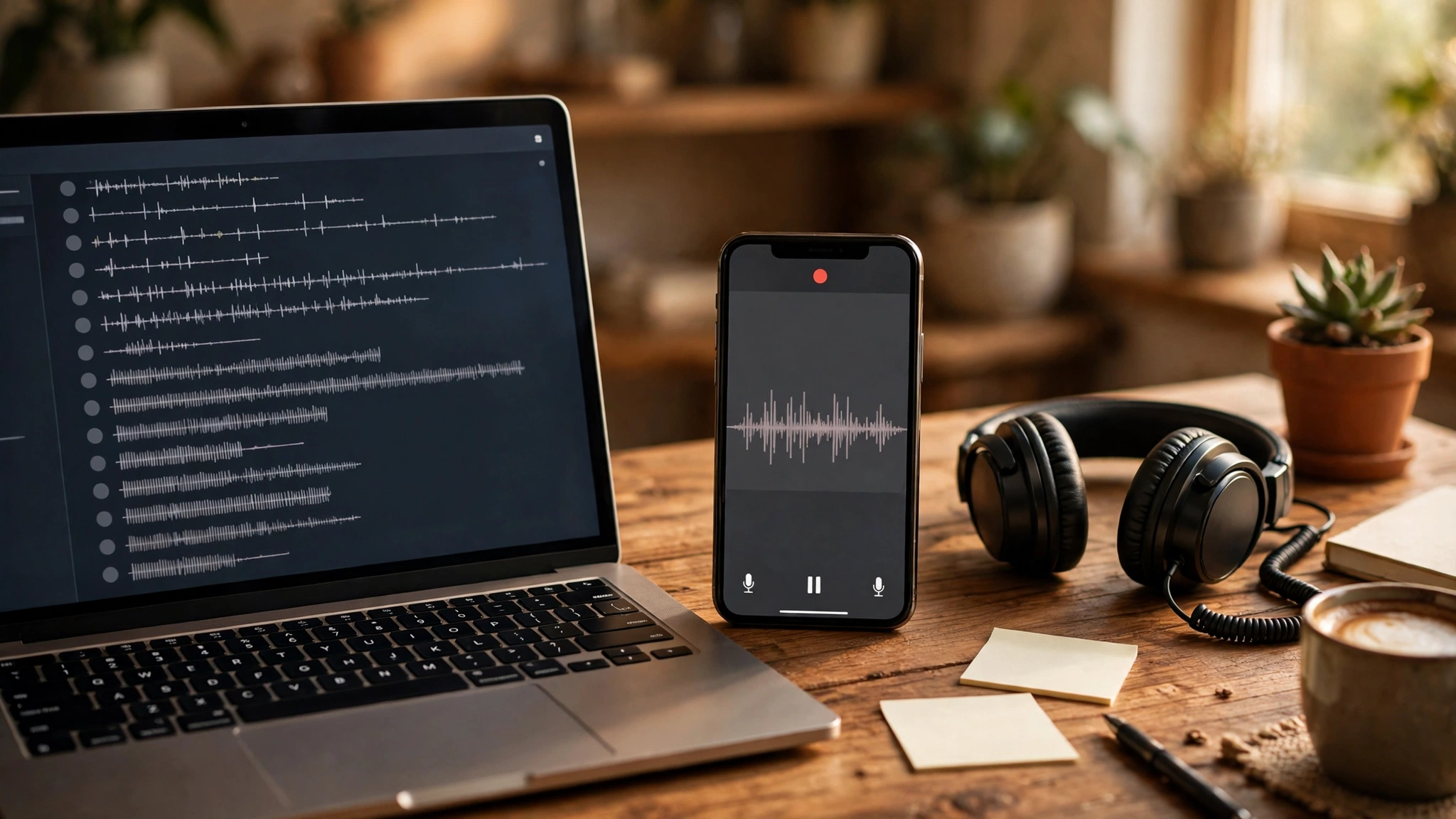
What Does It Mean to Transcribe Audio to Text?
To transcribe audio to text is to turn spoken words in a recording into written words you can read, search, and edit. You give a tool an audio file — an MP3, a voice memo, a lecture recording — or you speak into your microphone, and it writes out everything that was said. The best free transcription tools do this in minutes, with timestamps and speaker labels, and they cost nothing for ordinary use. This guide shows you how to get free transcription audio to text from any recording.
Transcription used to mean paying someone to type, or typing it yourself at half speed. In 2027 it is a solved problem for most everyday recordings: interviews, lectures, meetings, voice memos, podcasts, and YouTube videos. This guide covers the five free ways to transcribe audio to text, gives you step-by-step instructions for the three cases people actually have — an MP3 file, a voice memo, and live speech — and compares the free tools honestly on limits and privacy.
Table of Contents
Key Takeaways
- To transcribe audio to text free, you have five options: built-in voice typing, free web transcribers, in-browser Whisper tools, phone apps, and desktop apps.
- For an MP3 file, upload it to a free transcriber, pick the language, and export the transcript as TXT, DOCX, or SRT subtitles.
- For a voice memo, share the audio file to a transcriber — or play it into live voice typing if the file will not upload.
- Free transcription is accurate on clear, single-speaker audio; budget a few minutes to correct names, accents, and technical words.
- In-browser tools keep your audio on your own device; server tools upload it — check the privacy policy before transcribing anything sensitive.
The 5 Free Ways to Transcribe Audio to Text
Every free transcription method falls into one of five groups. They differ in what they need from you, what they do with your audio, and what limits they impose.
| Method | How it works | Best for | Watch out for |
|---|---|---|---|
| Built-in voice typing | Google Docs Voice Typing or Microsoft Word Dictate types as you speak | Live speech, dictating notes | Needs a live microphone; no file upload |
| Free web transcribers | Upload a file to a service such as Otter.ai or Descript | Meetings, interviews, lectures | Monthly minutes allowance; audio is uploaded |
| In-browser Whisper tools | A Whisper speech model runs inside your browser tab | Private recordings, quick files | Slower on long files; smaller model, slightly less accurate |
| Phone apps | Record or import audio on your phone and transcribe it there | Voice memos, on-the-go interviews | Free tiers vary; check export options |
| Desktop Whisper apps | Open-source Whisper running on your own computer | Long files, offline work | Needs a download and a reasonably fast computer |
1. Built-in voice typing: free and already installed
The easiest free transcription is the one you already have. Google Docs Voice Typing is free in Chrome: open a document, go to Tools, then Voice typing, pick your language, and speak. Google’s own support page lists more than a hundred supported languages. Microsoft Word Dictate works the same way with a free Microsoft account. Both transcribe live speech as you talk, which makes them ideal for dictating notes, drafting, or capturing a meeting you are sitting in. What they cannot do is transcribe a file you already recorded — for that, you need one of the methods below. Our AI voice guide explains how speech recognition works behind these tools.
2. Free web transcribers: the most capable free option
Services such as Otter.ai and Descript offer free tiers that transcribe uploaded audio files and live meetings, with speaker labels, timestamps, and searchable transcripts. Otter.ai’s free tier includes a monthly minutes allowance — enough for a few interviews or lectures a month — while Descript’s free tier pairs transcription with an editor that lets you cut audio by deleting words. The trade-off is that your audio is uploaded to their servers, so read the privacy policy before transcribing anything sensitive, and check the current free limits on each service’s own pricing page, because they change.
3. In-browser Whisper tools: private by design
Some free tools run OpenAI’s open-source Whisper speech model directly in your browser. The model downloads once, then transcribes on your own device — your audio file is never uploaded anywhere, there is no account, and there is no limit on how many files you transcribe. The cost is speed and a little accuracy: the in-browser model is smaller than the server version, so long recordings take longer and heavy accents or crosstalk cause more errors. For a private interview or a personal voice memo, this is the most private free option available. You can read about the model itself on OpenAI Whisper on GitHub.
4. Phone apps: transcribe where you record
If the recording is already on your phone — a voice memo, an interview, a lecture — a phone transcription app is the shortest path. Most phones now transcribe voice memos natively, and dedicated apps add speaker labels and export options. The free tiers vary widely, so check two things before you commit: whether the app exports as plain text or subtitles, and whether the free tier caps the minutes per month. If your phone app cannot export, share the audio file to a web transcriber instead.
5. Desktop Whisper apps: for long files and offline work
For long recordings, or for work you cannot upload anywhere, a desktop app running Whisper locally is the answer. You download the app once, point it at an MP3 or WAV file, and it transcribes on your own computer with no upload and no monthly cap. It needs a reasonably fast computer and some patience on very long files, but it is the only free method with genuinely no limits. This is the right choice for researchers, journalists, and anyone transcribing hours of audio a week.
How to Transcribe an MP3 File to Text Free
This is the most common case: you have a recording saved as an MP3, WAV, or M4A file, and you want the words. The steps are the same in almost every free tool.
- Pick your tool. For a short, private file, use an in-browser Whisper tool. For a meeting or interview with several speakers, use Otter.ai’s free tier. For a file you want to edit by deleting words, use Descript’s free tier.
- Upload the file. Drag the MP3, WAV, M4A, or OGG file into the tool. Most free tools accept the common formats; video files such as MP4 work too, because the tool transcribes the audio track.
- Choose the language. Pick the language actually spoken. Auto-detection exists, but choosing the language yourself is more accurate, especially for accented speech.
- Wait for processing. A clear 30-minute recording usually takes a few minutes. Longer or noisier files take longer, and in-browser tools are slower than server tools.
- Correct the transcript. Read it through once, fixing names, technical terms, and anything the tool misheard. Budget roughly five to ten minutes of correction for a 30-minute recording.
- Export it. Save as TXT for a clean script, DOCX for a document, or SRT or VTT if you need subtitles for a video.
If the audio came from a video you made, you may also want the audio itself separated first — our guide to extracting audio from video covers that step.
How to Transcribe a Voice Memo to Text
Voice memos are the recordings people actually have: a quick idea in the car, an interview on a phone, a lecture captured on the fly. The method depends on where the memo lives.
- Share the file. On iPhone or Android, open the voice memo, tap Share, and send the audio file to your chosen transcriber — by email, by upload, or straight into the app.
- Or play it into voice typing. If the file will not upload, open Google Docs Voice Typing on your computer, play the memo out loud from your phone, and let the microphone pick it up. It is slower, but it works with any file.
- Or use your phone’s built-in transcription. Most modern phones transcribe voice memos natively — check your phone’s notes or recorder app before installing anything.
- Correct and save. Voice memos are often recorded in noisy places, so expect more errors than a clean MP3. Fix names and key facts, then save the transcript where you will find it again.
One tip that saves real time: rename the memo before you transcribe it. “Interview with Maria, 14 November” is searchable; “Voice memo 47” is not.
How to Transcribe Live Audio as You Speak
Sometimes there is no file at all — you want the words written down as they are spoken. This is live transcription, and the free options are straightforward.
- Open Google Docs Voice Typing in Chrome, or Microsoft Word Dictate, and allow microphone access.
- Pick the language before you start speaking. Changing it mid-session confuses the model.
- Speak clearly, one person at a time. Free live transcription handles one speaker well and crosstalk badly. Pause between speakers in a meeting.
- Say punctuation out loud — “full stop”, “new paragraph” — if you want a readable transcript rather than a wall of words.
- Edit afterwards. Live transcripts are drafts. A five-minute read-through turns a rough transcript into a usable one.
For a meeting you are not speaking in, Otter.ai’s free tier can join and transcribe live, with speaker labels. If you only need to ask an AI about a recording you already have, Can ChatGPT transcribe audio? covers what ChatGPT can and cannot do with audio files.
How to Transcribe a YouTube Video
YouTube videos are a special case, because the platform already generates transcripts for many videos. Click the three dots under a video, choose “Show transcript”, and you will see the auto-generated text with timestamps. For videos without a transcript, paste the video into a transcription tool that accepts URLs, or download the audio and transcribe it as an MP3. If what you really want is the point of the video rather than every word, our best AI YouTube summarizers guide covers tools that summarise videos for you. And if you want to work with the audio track itself, our best free AI voice generators guide is the companion read.
How Accurate Is Free Transcription?
On clear, single-speaker audio recorded in a quiet room, free transcription is very good — good enough that the transcript needs only light correction. Accuracy falls when the audio is noisy, when several people talk over each other, when the speaker has a strong accent the model was not trained on, or when the vocabulary is technical. Names are the most common error: a model that has never heard your interviewee’s name will guess at it.
The fix is a correction pass, not a better tool. Read the transcript once while listening to the recording at 1.5x speed, and fix the names, the numbers, and any sentence that does not make sense. Five to ten minutes of correction on a 30-minute recording is normal, and it is still far faster than typing the whole thing yourself. If you need a transcript for publication or for legal purposes, that correction pass is not optional — it is the work.
Is My Audio Private?
It depends on the method. Server tools — Otter.ai, Descript, and most web transcribers — upload your audio to their servers to process it. Their privacy policies explain how long they keep it and who can see it, and you should read that policy before uploading an interview, a therapy session, or anything confidential. In-browser Whisper tools and desktop Whisper apps never upload the file at all: the model runs on your device, and nothing leaves the tab. For sensitive audio, that is the only free option that gives you real privacy.
A practical rule: if you would not email the recording to a stranger, do not upload it to a free server tool. Use an in-browser or desktop tool instead.
Which Free Transcription Method Should You Pick?
- You are speaking right now: Google Docs Voice Typing or Word Dictate — free, instant, already installed.
- You have an MP3 of a meeting or interview: Otter.ai’s free tier — speaker labels and a monthly minutes allowance.
- The recording is private: an in-browser Whisper tool or a desktop Whisper app — nothing is uploaded.
- You want to edit by deleting words: Descript’s free tier — transcription plus an editor.
- The recording is a voice memo on your phone: share the file to a transcriber, or use your phone’s built-in transcription.
- You transcribe hours of audio every week: a desktop Whisper app — the only free method with no monthly cap.
Start with the method that matches your recording, not the tool with the longest feature list. Most people only need one of these five methods, and the free tier of that method is enough. Here at Digital Discoverist, we test the tools so you can spend your time on the work, not on the software. For more, browse our How-To Guides.
Frequently Asked Questions
How do I get free transcription audio to text?
Upload your audio file to a free transcriber such as Otter.ai or Descript, use Google Docs Voice Typing for live speech, or use an in-browser Whisper tool that runs on your own device. All three are free for ordinary use, with limits on minutes or features.
What is the best free transcription tool?
It depends on the job. Otter.ai’s free tier is the best all-rounder for meetings and interviews, Google Docs Voice Typing is the best for live dictation, and in-browser Whisper tools are the best for private recordings that must not be uploaded.
Can I transcribe an MP3 to text free?
Yes. Upload the MP3 to a free transcriber, choose the language, and export the transcript as TXT, DOCX, or SRT subtitles. Most free tools accept MP3, WAV, M4A, and OGG files, and many accept video files too.
How do I transcribe a voice memo?
Share the voice memo file from your phone to a transcription tool, or play it into Google Docs Voice Typing. Many phones also transcribe voice memos natively — check your phone’s recorder or notes app first.
How accurate is free transcription?
Very good on clear, single-speaker audio in a quiet room. Accuracy falls with background noise, crosstalk, strong accents, and technical vocabulary. Budget five to ten minutes to correct a 30-minute recording.
Is my audio uploaded to a server?
It depends on the tool. Web transcribers upload your audio to their servers; in-browser Whisper tools and desktop Whisper apps process it on your own device and never upload it. For sensitive recordings, use an in-browser or desktop tool.
Can I transcribe a YouTube video?
Yes. Many YouTube videos already have an auto-generated transcript — click the three dots under the video and choose “Show transcript”. For videos without one, use a tool that accepts a video URL, or transcribe the audio track as an MP3.
What file formats can I transcribe?
Most free tools accept MP3, WAV, M4A, OGG, and FLAC audio, and many accept MP4 and other video files by transcribing the audio track. Check the tool’s own page for its exact list.
1 thought on “How to Transcribe Audio to Text Free in 2027: MP3, Voice Memos and Live Recording”