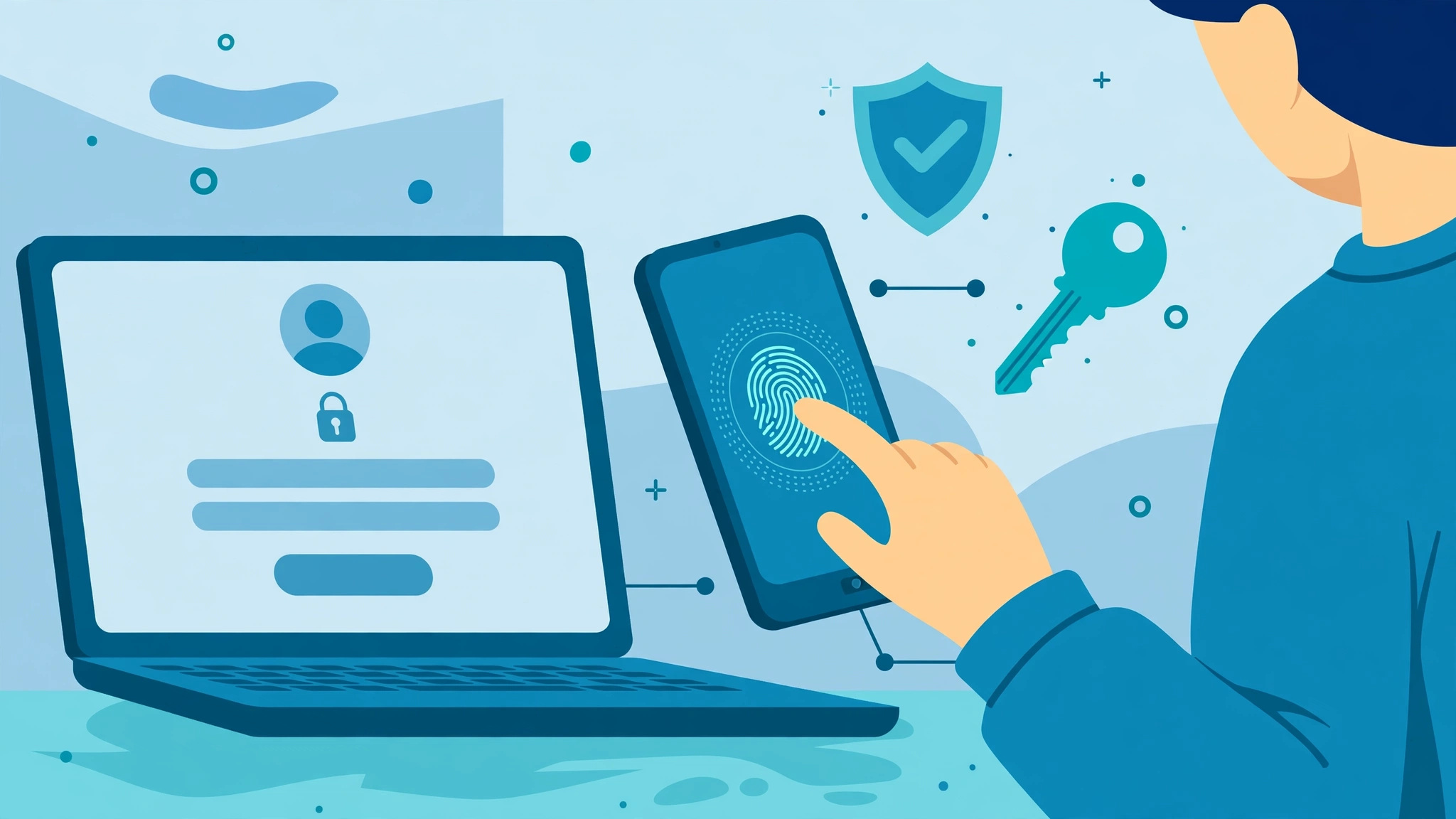
How Do Passkeys Work? The Short Answer
Passkeys work by replacing your password with a pair of cryptographic keys: a public key stored on the website’s server and a private key that never leaves your device. When you sign in, the website sends your device a random one-time challenge, your device signs it with the private key after you unlock it with a fingerprint, face scan or PIN, and the website checks the signature against your public key. Nothing secret is ever sent or stored on the server, so there is no password to steal, phish or leak. This guide explains the whole system in plain English: what a passkey is, how the key pair works, how to set one up, what happens if you lose your phone, and how passkeys compare with passwords and two-factor authentication.
Passkeys are the biggest change to everyday sign-ins since passwords themselves, and they are already built into the phones and computers most people own. If you have signed into a Google or Apple account in the last two years, you have probably been offered one. If the idea of software that checks whether a download is safe interests you, our guide to whether LibreOffice is safe covers the same kind of practical security judgement.
Table of Contents
Key Takeaways
- A passkey is a pair of keys: a public key stored on the website and a private key that never leaves your device.
- Signing in means your device signs a one-time challenge with the private key after you unlock it with a fingerprint, face scan or PIN. Your biometric data is never sent to the website.
- Passkeys are phishing-resistant because each one is bound to the exact website it was created for. A fake login page cannot use it.
- Passkeys sync across your devices through Google Password Manager, iCloud Keychain or a password manager such as 1Password or Bitwarden.
- Not every site supports passkeys yet. Set them up where they are offered, keep a password manager for the rest, and keep account recovery options ready.
What Is a Passkey?
A passkey is a login credential that replaces your password. Instead of remembering a secret and typing it into a website, you create a passkey once on your phone or computer, and from then on you sign in by unlocking your device: a fingerprint, a face scan or your screen-lock PIN. There is nothing to remember, nothing to type and nothing to reuse across sites.
Passkeys are built on two open standards, FIDO2 and WebAuthn, maintained by the FIDO Alliance and the World Wide Web Consortium. The FIDO Alliance was founded in 2013 to build exactly this kind of password-free sign-in, and the technology behind it, public-key cryptography, has been securing the web since the 1970s. What is new is not the cryptography. What is new is that Apple, Google and Microsoft have built passkey support directly into iOS, Android, Windows and macOS, so ordinary users can finally use it without installing anything.
The simplest way to think about a passkey is that it is a key you own, not a secret you share. A password is a secret you hand to a website and hope it keeps safe. A passkey is a key that stays in your pocket, and the website only ever holds the matching lock.
How Do Passkeys Work? The Key Pair, Explained Simply
Every passkey is a pair of two mathematically linked keys: a public key and a private key. The two keys have different jobs, and understanding them is the whole explanation.
When you create a passkey for a website, your device generates the pair. The public key is sent to the website and stored on its server. The private key stays on your device, protected by your screen lock, and it is never sent anywhere. Picture the public key as a padlock you can copy and hand out freely, and the private key as the one key that opens it. Anyone can hold a copy of the lock. Only your key opens it.
Signing in then works in five steps. First, you tap sign in, and instead of a password field the site asks your browser to start passkey authentication. Second, the server sends your device a random, single-use challenge, basically a very large random number that can only be used once. Third, your device asks you to verify yourself with a fingerprint, face scan or PIN. Fourth, your device signs the challenge with the private key, creating a unique signature that proves you hold the key without revealing it. Fifth, the server checks the signature against the public key it stored. If the maths holds, you are signed in. The whole exchange usually takes a second or two.
Two details in that flow are what make passkeys secure. The challenge is single-use, so an attacker cannot record your answer and replay it later. And the private key never leaves your device, so there is nothing for an attacker to steal from the website’s database. If a site is breached, the attackers get only public keys, which are useless on their own. Google’s own explainer of how passkeys work describes the same exchange: the server never learns what your passkey actually is, it only confirms that your device holds it.
How to Set Up a Passkey
Setting up a passkey takes about a minute, and the pattern is the same everywhere: open the account’s security settings, find the passkeys option, and let your device create one. The exact menu names change between services, so look for Passkeys, Sign-in options or Passwordless sign-in inside the security settings of the account you want to protect.
As a worked example, here is a Google account. Open your Google Account, go to Security, and look for Passkeys. Choose Create a passkey, and your phone or computer will ask you to unlock the device. That is the whole setup. From then on, signing into Google on that device is a fingerprint or face scan instead of a password. On an iPhone, passkeys are managed under Settings, your Apple ID, and Sign-In and Security. On Windows, they live under Settings, Accounts, and Passkeys. Apple’s guide explains how to use passkeys to sign in on iPhone, and Microsoft’s guide explains how to create and save a passkey for a Microsoft account. If you use a password manager such as 1Password or Bitwarden, you can also create and store passkeys there, which keeps them in one place across all your devices.
A good order to work through is the accounts that matter most: your email, your Apple or Google account, your bank if it offers passkeys, and any service that holds your money or your identity documents. Set up one, use it for a week, and then work through the rest. There is no need to do them all in one sitting.
One warning belongs here. Do not create a passkey on a shared or public computer. A passkey on a device you do not own is a key you do not control. The same applies to a work device: a passkey created there belongs to work, so use it only for work accounts.
Are Passkeys Safer Than Passwords?
Yes, in the ways that matter most. The comparison is not close, because passkeys fix the structural problems of passwords rather than patching them.
A password is a shared secret. When you sign in, you send that secret across the internet, and the website stores a version of it. Anyone who intercepts it, guesses it, tricks you into typing it on a fake page, or breaches the website’s database can reuse it. And because people reuse passwords, one breach can unlock many accounts. Passkeys share nothing secret. Your device answers a cryptographic challenge that proves it holds the private key without revealing it, so there is nothing to intercept, guess or reuse.
The phishing difference is the sharpest one. A passkey is cryptographically bound to the exact website or app it was created for, which is called its origin. If you are tricked onto a fake login page that looks like your bank, your passkey simply will not work there, because the fake site is not the origin the passkey belongs to. A password, by contrast, works perfectly on a fake page, which is exactly why phishing works.
Your biometric is not the passkey, and that distinction matters. A fingerprint or face scan only unlocks your device locally, so you can use the private key. The biometric data is never sent to the website and never leaves your device. If someone steals your phone, they still cannot use your passkeys without your fingerprint, face or PIN, and if someone breaches a website, they get only public keys.
None of this means passkeys cannot fail. A device can be lost, an account recovery process can be abused, and a site can implement passkeys badly. But the everyday attacks that passwords suffer, phishing, credential stuffing, database breaches and password reuse, do not work against passkeys. That is why the industry, including Google, Apple and Microsoft, has agreed on them as the replacement.
Passkeys vs Two-Factor Authentication
Two-factor authentication and passkeys are often confused, because both make sign-in safer, but they do different jobs. Two-factor authentication adds a second check after a password: you type the password, then approve a prompt or type a code. The password is still there, and it can still be phished or stolen. A passkey replaces the password entirely with a single phishing-resistant check.
Think of it this way. Two-factor authentication is a password plus a second lock on the door. A passkey is a different kind of door, one that has no password-shaped hole for an attacker to pick. Some sites offer two-factor authentication on top of a passkey as well, and that combination is the strongest option of all: a phishing-resistant credential plus a second check. If a site you care about offers both, turn both on.
What Happens If You Lose Your Phone?
This is the question that stops most people from trying passkeys, and the answer is better than most people expect. If your passkeys are synced, losing a phone is an inconvenience, not a disaster. Passkeys created on an iPhone sync through iCloud Keychain, passkeys on Android sync through Google Password Manager, and passkeys stored in 1Password or Bitwarden sync through those services. Sign in on a new device with the same account, and your passkeys come back with it.
Problems only start when a passkey was created on one device and never synced anywhere. Then the only way back in is the site’s account recovery process: recovery codes, a backup email address, or another device still signed in. That is why two habits matter. First, keep passkey syncing turned on, and check that it is on for the account that holds your passkeys. Second, keep a fallback ready for the accounts that matter: store the site’s recovery codes somewhere safe, such as a password manager or a printed copy in a drawer, and keep a second device signed in where it matters.
If you lose a device, treat it like losing a wallet. Sign into your Google or Apple account from another device, remove the lost device from your trusted devices, and check the security settings of your most important accounts. The passkeys on the lost device cannot be used without your fingerprint, face or PIN, so a thief cannot simply pick up the phone and sign in as you.
Which Sites Support Passkeys?
Support is now broad and still growing. Apple, Google and Microsoft have built passkey support into their operating systems, and major services including Google, Apple, Microsoft, Amazon, PayPal, eBay and GitHub support passkey sign-in. Banks, airlines and government services are adopting passkeys more slowly, and many smaller sites do not offer them yet.
The practical rule is simple: when a site you use offers passkeys, set one up. When it does not, keep using a strong, unique password stored in a password manager. Passkeys and passwords will sit side by side for years, and a password manager is the right home for the passwords that remain. You can check whether a particular service supports passkeys on the FIDO Alliance’s passkeys directory, or simply by opening the account’s security settings and looking for the option.
The Honest Limits of Passkeys
Passkeys are the best everyday sign-in available, but they are not magic, and an honest guide should say where they fall short.
First, not every site supports them yet. You will still need passwords for some accounts, and a site that only offers passkeys as an optional extra can still be phished through its password login. Second, some sites keep a password as a backup even after you add a passkey, which means the password remains a weak point until the site removes it. Third, passkeys depend on your device ecosystem: moving from iPhone to Android, or between password managers, can mean recreating passkeys, because syncing works best inside one ecosystem. Fourth, shared devices are a poor fit, as explained above. And fifth, account recovery is the weakest link in the whole system. A passkey can be perfect and still be undone by a recovery process that lets anyone with access to your email reset the account, so protect your email account first, with a passkey and a strong recovery setup.
None of these limits is a reason to avoid passkeys. They are reasons to set them up thoughtfully: sync turned on, recovery codes stored, email protected first. If you run a website of your own, the same thinking applies to your visitors’ accounts, which is why our guide to creating a website with AI includes a note on account security, and why the resume guide on adding a resume to LinkedIn reminds readers to secure the account that holds their career history. For the wider picture of how the web’s safety tools work, browse our Tech Insights guides on Digital Discoverist.
Frequently Asked Questions About Passkeys
What is a passkey?
A passkey is a login credential that replaces your password. It is a pair of cryptographic keys: a public key stored on the website and a private key that stays on your device. You sign in by unlocking your device with a fingerprint, face scan or PIN.
How do passkeys work?
When you sign in, the website sends your device a random one-time challenge. Your device signs it with the private key after you unlock it, and the website verifies the signature with your public key. The private key and your biometric data never leave your device.
Are passkeys safer than passwords?
Yes. Passwords are shared secrets that can be phished, guessed or leaked in a breach. Passkeys share nothing secret, are bound to the exact website they were created for, and cannot be reused on a fake login page.
What happens if I lose my phone with my passkeys?
If your passkeys are synced through iCloud Keychain, Google Password Manager or a password manager, they come back when you sign in on a new device. If a passkey was never synced, use the site’s account recovery, such as recovery codes or a backup email.
Do passkeys work on all websites?
No, not yet. Major services including Google, Apple, Microsoft, Amazon, PayPal, eBay and GitHub support them, but many smaller sites and banks do not. Set up passkeys where they are offered and keep a password manager for the rest.
Will passkeys replace passwords?
Passkeys are the industry’s agreed replacement, and adoption keeps growing, but passwords will sit alongside them for years. The practical approach is to use passkeys where they are offered and keep strong, unique passwords in a password manager for everything else.
3 thoughts on “How Do Passkeys Work in 2027? A Plain-English Explanation”