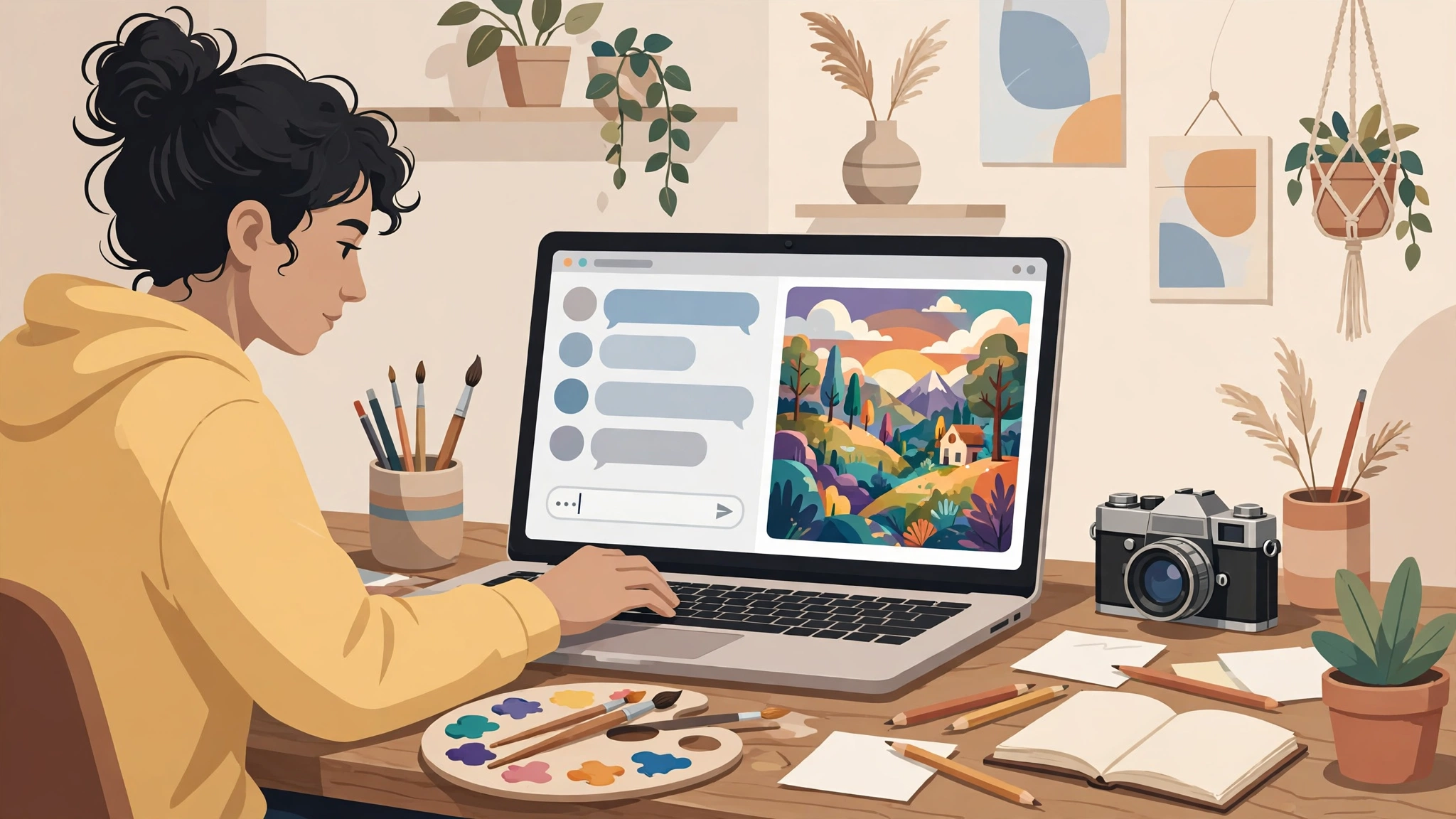
The ChatGPT image generator turns a plain-language description into a finished picture, inside the same chat window you already use for writing and questions. Describe the image, review the result, and refine it in conversation until it is right — no design software, no separate app, no special syntax. This guide explains how the ChatGPT image generator works in 2027, how to write prompts that land on the first or second try, how to edit what it makes, and where it still falls short.
Key takeaways: The ChatGPT image generator is built into ChatGPT: describe a picture in any chat and it renders it, and you can refine it with follow-up messages or edit a specific part of it. Every plan can create images, with the Free plan limited. The skill is not operating the tool — it is writing a specific prompt (subject, setting, style, shape, and any text in quotes) and changing one thing at a time. It is best for social posts, mockups, thumbnails, and concept art; for fine art or print-quality work, a standalone generator such as Midjourney or Adobe Firefly is still the better tool.
Table of Contents
What is the ChatGPT image generator?
The ChatGPT image generator is the text-to-image capability built directly into ChatGPT. You describe the image you want — subject, style, mood, composition — and the model renders it seconds later as a downloadable file. There is no separate app to learn, no credits dashboard to manage, and no special syntax to memorise: image creation works inside the same conversation you already use for writing and research. OpenAI replaced the original DALL-E integration with image generation built natively into its GPT image model in March 2025, so the generator now understands the context of your whole conversation — it can use details from earlier messages when you ask for a follow-up image, and it can edit an image you upload instead of starting from scratch. For a broader look at image tools, see our guide to the best AI picture generators.
How do I use the ChatGPT image generator?
There are four ways in, and they all lead to the same generator. The simplest is to ask in any chat: type a description such as “Create an image of a cosy bookshop interior at golden hour” and ChatGPT renders it. You can also open the Images page, where ChatGPT keeps every picture you make and where templates give you a starting point for posters and designs. On the mobile app, a Sketch tool lets you draw a rough layout that is easier to sketch than to describe. And you can upload an existing image and ask ChatGPT to change it — a new background, a different season, a removed object. Here is the basic workflow:
- Open ChatGPT on the web, desktop, or mobile app and start a new chat.
- Describe your image in one to three concrete sentences: purpose, subject, setting, style, and shape.
- Review the result closely. Zoom in on details and read any rendered text before you commit.
- Refine it conversationally. Change one thing at a time — “make the palette warmer” — and say what must stay the same.
- Download the image from the image menu. It is also saved to your Images gallery, so you can reopen it later and keep editing.
- For brand work, generate a small batch of variations and pick the strongest rather than polishing a weak first draft.
How to write a good ChatGPT image prompt
A good image prompt is a design brief, not a wish. Cover five things, and put any words that must appear in the image in quotation marks.
| Ingredient | Weak version | Strong version |
|---|---|---|
| Purpose | a poster | a square Instagram poster for a weekend farmers market |
| Subject and action | vegetables | a wooden stall piled with tomatoes, bread, and flowers, a vendor handing a bag to a customer |
| Setting and composition | outside | morning light, stall in the lower two-thirds, empty sky at the top for the headline |
| Style | nice photo | warm editorial photography, soft shadows, muted green and cream palette |
| Constraints | — | 16:9, no logos, no watermark, no other text |
Three worked examples show the formula in action. For a YouTube thumbnail: “Create a clean YouTube thumbnail for a beginner Python tutorial. Show a laptop on a desk with a simple code window, soft daylight from the left, bold sans-serif title ‘Python in 10 Minutes’ in the top third, high contrast, 16:9. No other text, no watermarks.” For a product mockup: “Create a studio-style product photo of a ceramic coffee mug against a pale blue background with soft shadows, the mug slightly right of centre, minimalist editorial style, square format.” For a social post: “Create a square social media ad for an organic hand soap. Show the bottle on a bathroom vanity in soft morning light, minimalist editorial photography style, and leave empty space in the upper-left corner for copy.” The pattern is the same every time: purpose, subject, setting, style, constraints. For more prompts you can adapt, our guide to ChatGPT prompts that actually work explains the same technique for text.
Can ChatGPT edit an image I upload?
Yes, and editing is where the ChatGPT image generator is most useful. Upload a photo and describe the change in plain words: replace the background, change the season from summer to autumn, remove an object, restyle the whole image as a watercolour, or add text to a poster. You can also select a specific part of a generated image and describe what should change there, leaving the rest untouched. Two rules make edits work: change one thing at a time, and state what must stay the same. “Keep the bottle and the composition exactly the same, but make the background warmer and reduce the shadows” works far better than a long list of changes at once. Expect selections to be approximate — an edit can bleed into surrounding areas — so check the result closely and ask for a correction rather than starting over. If you need precise, pixel-level control, a photo editor is still the right tool; our guide to the best free AI photo editors covers that job.
Is the ChatGPT image generator free?
Yes, within limits. Every ChatGPT plan, including the Free plan, can create images, but image creation on the Free plan is limited — OpenAI’s own help pages say image creation has its own allowance, separate from chat, and that it can be stricter than on paid plans. Paid plans raise the allowance: the Go plan offers more image creation than Free, and Plus offers more still, including image generation with Thinking for more complex and accurate results. OpenAI does not publish exact daily numbers, and the limits change, so do not plan a project around a specific count you read in a roundup. If you hit the Free-plan limit, the practical options are to wait for it to reset, upgrade to a paid plan, or use a dedicated free image tool for the overflow — our guide to the best free AI photo generators lists the honest free options.
What is the ChatGPT image generator best for?
It is best for work where speed and conversation matter more than perfection: social media posts, blog illustrations, product mockups, thumbnails, posters, presentation visuals, and concept art to show a client a direction before a designer takes over. The conversational loop is the advantage — you can iterate on an idea in the same chat where you wrote the caption or planned the campaign. It is weakest where precision matters: hands and faces in close-up, exact logos, precise text in small sizes, consistent characters across many images, and print-quality resolution. For those jobs, a standalone generator gives you more control: Midjourney for stylised and artistic images, Adobe Firefly for commercially safe images trained on licensed content, or a traditional editor for pixel-perfect work. Use ChatGPT when you want conversation, iteration, and one-off assets; use a specialist tool when the image itself is the product.
Can ChatGPT make images with text in them?
Yes, and it is better at it than most image generators, because the model renders text as part of the image rather than as decoration. Short text works best: a headline, a poster title, a label, a sign. Put the exact words in quotation marks in your prompt, keep the text short, and read every word in the result before you use it — the generator still misspells words, drops letters, or adds extra text, especially in longer passages. Templates on the Images page help here, because they start from a known layout, but the same rule applies: read all the text the template produced, because you only supplied part of it. For anything where the text must be perfect — a client poster, a book cover, packaging — generate the image without text and add the wording in an editor afterwards.
What image sizes can ChatGPT make?
You can ask for the shape you need in the prompt or in the aspect-ratio picker: square for social posts, wide 16:9 for thumbnails and banners, tall for posters and phone wallpapers. The generator handles common ratios well, and you can ask it to reframe an existing image to a new shape. Resolution is the honest limitation: generated images suit screens, social feeds, and blog posts, but they are not print-resolution files, and upscaling a generated image in a photo editor improves sharpness without adding real detail. If you need a large-format print, generate the concept in ChatGPT and recreate it at full resolution in a design tool.
Who owns images made with ChatGPT?
Under OpenAI’s terms, you own the images you create, subject to the usage policies — that is the position OpenAI states, and it is the reason many creators use the tool for client work. Ownership is not the whole story, though. You are responsible for how you use the images: do not ask the generator to copy a living artist’s style, reproduce a copyrighted character, or recreate a trademarked logo, and do not present an AI-generated image as a photograph of a real event or person. For client work, keep a note of which images are AI-generated and check the current terms on OpenAI’s site before delivery, because the terms change. And remember that “you own it” does not mean “nobody else can make something similar” — the same prompt can produce a similar image for someone else.
ChatGPT vs Midjourney vs Adobe Firefly
| ChatGPT image generator | Midjourney | Adobe Firefly | |
|---|---|---|---|
| How you work | Conversation in ChatGPT | Prompts, usually in Discord or web | Prompts inside Adobe apps |
| Best at | Quick assets, mockups, edits, iteration | Stylised and artistic images | Commercially safe images, Adobe workflow |
| Editing an upload | Yes, conversational edits | Limited | Yes, generative fill |
| Text in images | Good for short text | Improving, still unreliable | Good for short text |
| Free option | Limited free image creation | No permanent free tier | Free credits each month |
| Choose it when | You want speed and iteration | The look is the point | You need licensed-training reassurance |
Most creators end up using two of these: ChatGPT for fast ideas and edits, and Midjourney or Firefly when the final image has to look a particular way. There is no single best image generator — there is a best one for the job in front of you.
Frequently asked questions
How do I generate an image with ChatGPT?
Open any ChatGPT conversation and describe the image in plain language, or open the Images page and start from a template. Cover the purpose, subject, setting, style, and shape in one to three sentences, review the result, and refine it with follow-up messages. Download the finished image from the image menu.
Can ChatGPT generate images from text?
Yes. Text-to-image generation is the core feature: you write a description and ChatGPT renders a picture from it. The more specific your description — subject, setting, style, composition, constraints — the closer the result is to what you imagined.
Can ChatGPT edit a photo I already have?
Yes. Upload the photo and describe the change: a new background, a different season, an object removed, or a whole new style. You can also select part of a generated image and edit just that area. Change one thing at a time and state what must stay the same.
Does ChatGPT save the images I create?
Yes. Every image you generate is saved to your Images gallery in ChatGPT, where you can find it later, reopen it, and continue editing it in a new chat. Download the images you need for your own records as well, so you are not relying on the gallery alone.
Is the ChatGPT image generator better than DALL-E?
It is the successor to it. OpenAI replaced the original DALL-E integration with image generation built natively into its GPT image model in March 2025, so the current generator understands your conversation context, edits uploads, and renders text more reliably than the old DALL-E integration did. If you used DALL-E inside ChatGPT before, the image generator you see now is the newer system.
Final verdict
The ChatGPT image generator earns its place because it removes the gap between having an idea and seeing it. You do not need design skills, a second app, or a prompt manual — you need a specific description and the patience to iterate twice. Start with the five-ingredient prompt formula, change one thing at a time, and check text and details before you publish anything it makes. For social posts, mockups, thumbnails, and concept art, it is the fastest tool available. For fine art, print, or pixel-perfect work, pair it with a specialist. And if you want to put it to work today, open ChatGPT and try the thumbnail example above — you will know within two minutes whether it fits your workflow.
At Digital Discoverist, we test AI tools so you can choose with your eyes open. Browse the Discover Tools category for more tools in this niche, and if you want to go further with AI-generated visuals, our guide to the best AI tools is the place to start.
3 thoughts on “ChatGPT Image Generator in 2027: How to Create Images with ChatGPT”