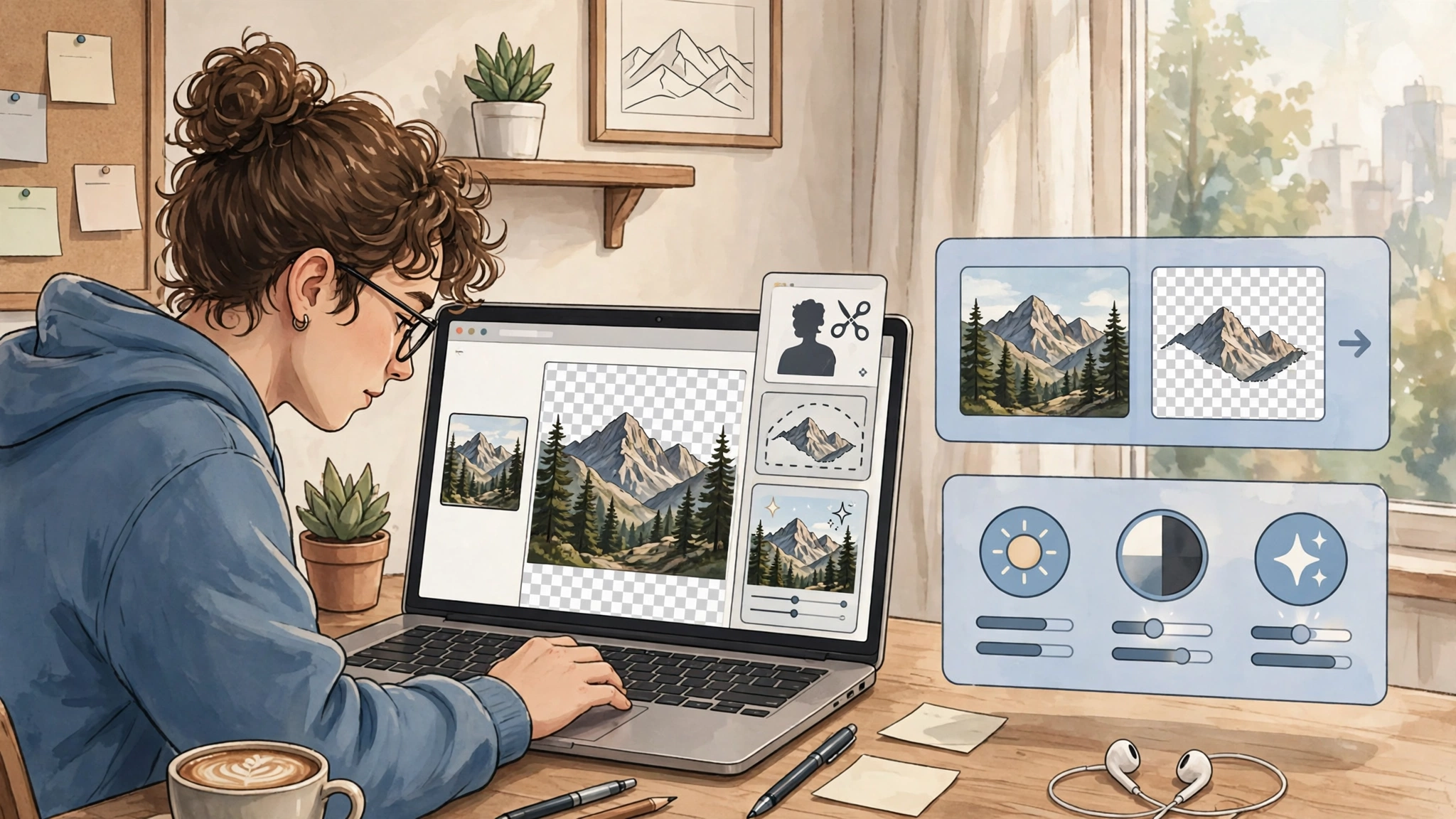
A ai photo editor free tier sounds like a simple deal: open a website, fix a photo, pay nothing. In practice, “free” means different things on different tools: a daily credit allowance, a lower-resolution export, a watermark, or a feature that is free only until you need it for commercial work. This guide compares the best free AI photo editors by the edit you actually need, so you can choose a tool that will still be free when you reach the export button, not just when you open the editor. Check the free limit on the official page before you start a project, because free tiers change without warning and a guide’s numbers are only a snapshot.
Key takeaways
- Pick by edit type first: prompt edits, background removal, quick fixes, layered editing and design are different jobs, and each has a different best free tool.
- Check four things before you commit to a tool: whether an account is required, whether exports carry a watermark, what resolution you can export, and whether commercial use is included.
- For most everyday jobs, a free AI photo editor is enough — but for client work or a shop listing, commercial use and high-resolution exports matter more than a one-off test.
- Free limits change often. Treat any allowance quoted in a guide, including this one, as a starting point and check the current free plan before you start a project.
- Never upload a private or sensitive photo to an editor you have not checked for privacy: prefer tools with clear data handling, and keep an untouched original so you can start again.
Table of Contents
Direct answer: In 2027, the best free AI photo editor for most people is the one that matches the edit: use a prompt-based editor such as Gemini or a dedicated AI editor for edits you describe in words, PhotoRoom or Fotor for clean product cutouts, Pixlr for layered browser editing, and Canva or Adobe Express when the photo still has to become a finished social post. Start free, test it on a real photo from your own work, and check the export before you commit to a tool.
What is the best ai photo editor free?
There is no single winner, because a free AI photo editor is really several tools wearing one name. One tool is good at describing an edit, another at cutting out a subject, a third at quick enhancement, and a fourth at turning the result into a finished design. The honest way to choose is to name your most common edit, then check the free tier against it. The table below does that work for you, and the sections that follow explain the trade-offs behind each row. You can also browse more Discover Tools guides when a different job comes up.
Best free AI photo editors at a glance
| Your edit | Start here | Why it fits | Free-tier catch to check |
|---|---|---|---|
| Edit by describing it in words | Gemini, or a dedicated prompt editor | Type the change instead of learning sliders and masks | Daily or account limits apply and change often |
| Clean product cutout | PhotoRoom, Fotor background remover | Built for subject separation, with product-ready exports | Commercial use and high-resolution export may need a paid plan |
| Quick fix: light, colour, sharpness | Fotor, Adobe Express | One-click enhancement and object removal without a learning curve | Some AI features are capped daily on the free plan |
| Layered editing in a browser | Pixlr | Layers, generative fill and expand, no install needed | Advanced AI tools may be limited compared with the paid tier |
| Photo plus finished design | Canva, Adobe Express | Edit the photo, then drop it straight into a post or flyer | Some tools inside the editor, such as background remover in Canva, are paid features |
Is there a free AI photo editor with no watermark?
Sometimes, but “no watermark” is not the whole story. A tool can export without a watermark and still cap the resolution, limit commercial use, or add a credit requirement in its terms. Another tool may export without a watermark for personal use and add one for commercial exports. The safest test is the export itself: run one real photo through the free tier, download it, and check the file for a watermark, its dimensions, and whether the file is usable where you intend to publish it.
A useful test takes five minutes. Take one real photo — a product shot, a headshot, or a social image — and try the edit you need, then export it and view it at full size. Look for soft edges, lost detail, or a watermark you missed in the preview. If the photo is grainy to begin with, read our guide on how to fix grainy photos, and for editing in a browser more generally, see our online photo editor guide.
Which free AI photo editor is best for background removal?
For background removal, purpose-built cutout tools usually beat general editors. PhotoRoom is built for this job: it separates the subject, cleans the edge, and gives you a product-ready background in seconds. Fotor’s background remover works in a similar way and is worth testing on the same photo, because the better edge on your particular image matters more than a general ranking.
If your photo needs more than a cutout — a shadow added back, a colour change, or text placed beside the subject — move to a layered editor such as Pixlr, or a design tool such as Canva or Adobe Express. At Digital Discoverist, we recommend judging a tool on the finished file, not on the demo: if the exported cutout looks clean at full size and the licence covers your use, it is the right tool for that job, whatever the ranking says.
Which is best for editing by typing a prompt?
Prompt editing is the biggest change in free photo editing. Instead of selecting an area and choosing a tool, you describe the change: remove an object, change the background, adjust the light, or restyle the image. Gemini is a strong free starting point here because you can describe edits in plain conversation and iterate: if the first result is wrong, you say what to change next. Dedicated prompt editors work the same way but are built only for images, so they may offer finer control over style and detail.
Prompt editing has two honest limits. First, it is imprecise: a prompt editor may change more of the photo than you asked for, especially on faces and text, so always compare the result with the original at full size. Second, repeated edits can soften detail, so it is better to get the edit right in as few steps as possible and to keep an untouched copy of the original. Save the original before you start — every editor in this guide works on a copy, but keeping your own backup means you can always start again.
Can I edit photos free without an account?
Yes, for some jobs. A few free tools let you run a single-purpose edit, such as a background removal, without signing up. That is ideal for a one-off job or for testing a tool before you trust it with an account. The trade-off is that no-account tools usually cap what you can do: fewer edits, lower resolution, or no history of your work. If you edit photos weekly, an account is usually worth it — you get saved projects, higher limits and a consistent workspace — provided you are comfortable with the provider storing your images. For occasional edits, the no-account route is the more private and simpler choice.
Which free editor is best for social media posts?
When the photo still has to become a post, the editor that also designs wins. Canva’s free plan pairs a capable photo editor with templates, text and layout tools, so you can edit a photo and publish a finished post without switching apps. Adobe Express works the same way, with strong one-click fixes and object removal alongside templates. The catch in both cases is that the most powerful AI features are sometimes gated: check whether the specific feature you need — background removal, generative fill, or a particular AI effect — is included free or sits behind the paid tier. A free plan that covers everything except the one feature you need is not a free plan for your job.
For generating a brand-new picture rather than editing one you already have, the choice is different: see our guides to free AI photo generators and AI picture generators by picture type. Editing and generating are neighbouring jobs, but they reward different tools, and mixing them up is the most common reason a “best editor” list disappoints.
Can I use free AI-edited photos commercially?
Not automatically. Free tiers commonly allow personal use while reserving commercial use — advertising, shop listings, client work, or monetised content — for paid plans. Some tools allow commercial use of your own edited photos but not of AI-generated elements added during the edit. Others allow commercial use with attribution. Because the rule differs by tool and by feature, there is no safe general answer: check the licence terms on the official page for the exact tool and feature you used, and keep a note of what you checked. If the photo will earn money or represent a business, that five-minute check is part of the job, not an extra.
What can a free AI photo editor not do?
A free AI photo editor cannot reliably recover detail that is not in the original file, restore a badly damaged photo to studio quality, or read small text accurately after an edit. It also cannot guarantee that an AI change will look identical every time: the same prompt can produce slightly different results, which matters for a consistent product catalogue. For work that must match exactly — brand colours, product details, or a series of matching images — a manual layered editor gives you more control than a prompt editor, even if it takes longer. Use AI for speed and for first drafts, and use manual control for the final version when consistency matters.
Privacy deserves the same honesty. When you upload a photo to an online editor, that photo may be processed on the provider’s servers. For family photos, client images or anything confidential, prefer an editor that states clearly how uploads are handled and deleted, avoid uploading originals you cannot afford to share, and delete the project when you are done. A free tool is never free if it costs you control of a private image.
A 5-minute workflow that works with any free AI photo editor
- Save an untouched copy of the original photo before you edit anything.
- Name the single edit you need: cutout, prompt change, quick fix, layered edit, or finished design.
- Pick the tool from the table above for that edit, not the tool with the most features.
- Run the edit on a real photo, export it, and check it at full published size for edges, sharpness and watermarks.
- Check the licence for your use — personal or commercial — on the official page before you publish.
- If a limit blocks you, switch tools for that job rather than paying immediately: most people need two free editors, one for cutouts and one for everything else, not one paid plan.
Frequently asked questions
What is the difference between an AI photo editor and an AI photo generator?
An AI photo editor changes a photo you already have: it removes, replaces or enhances parts of it. An AI photo generator creates a new picture from a text prompt. If you have a photo to fix, you need an editor; if you have only an idea, you need a generator.
Do free AI photo editors reduce image quality?
They can, mainly through export resolution caps on free tiers and through repeated AI edits softening detail. Export at the highest resolution the free tier allows, make as few AI passes as possible, and always compare the export with the original before publishing.
Which free AI photo editor is easiest for a beginner?
A quick-fix or design editor such as Fotor, Canva or Adobe Express is easiest, because the main edits are one-click and the interface explains itself. A layered editor such as Pixlr is more powerful but takes longer to learn, so start with it only if you need layer control.
Should I pay for an AI photo editor?
Pay when a free limit repeatedly blocks real work: watermark-free commercial exports, higher resolution, or a feature you use weekly. Pay for one tool that covers your main job, not for several tools whose free tiers already cover occasional jobs.
The best free AI photo editor in 2027 is the one that fits your edit, your export and your licence — in that order. Start with the table above, test two tools on a real photo, and keep the one whose free tier actually delivers the file you need. For the full set of tools we recommend, start with our pillar guide to the best AI tools in 2027.
1 thought on “Best Free AI Photo Editors in 2027: Pick by the Edit You Actually Need”