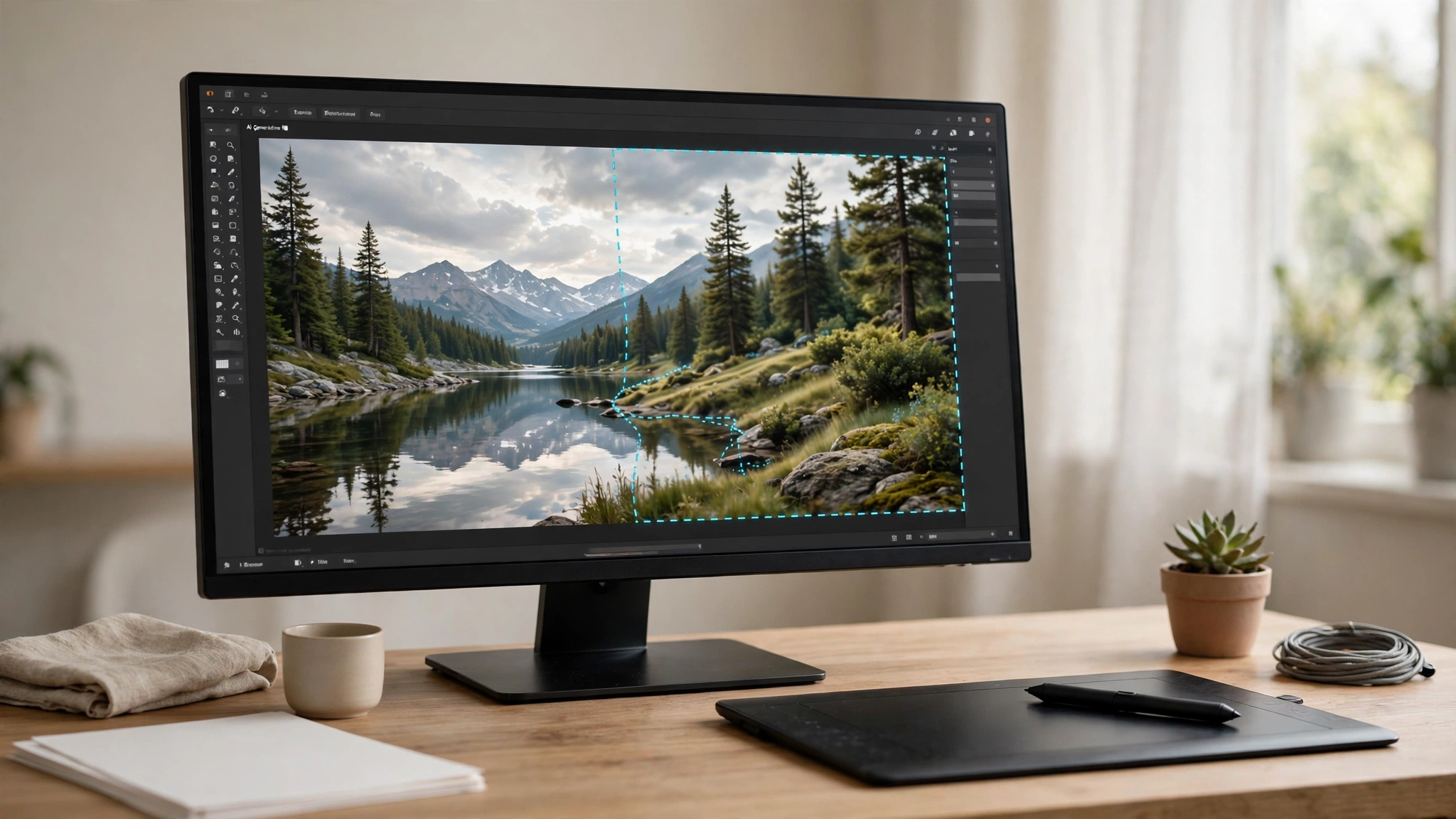
What Is AI Photoshop? The Short Answer
AI Photoshop is Adobe Photoshop with generative AI built in. Instead of selecting pixels and painting them by hand, you describe what you want in words — “remove the tourist”, “extend this beach”, “replace the grey sky” — and Photoshop generates the result, on its own layer, in seconds. The features are powered by Adobe Firefly, Adobe’s own AI image model, plus partner models from Google and Black Forest Labs that you can pick inside Generative Fill. This guide explains what AI Photoshop can do in 2027, how each feature works, what the generative-credits system means for your wallet, and the free alternatives worth trying if you do not want a subscription.
Table of Contents
Key Takeaways
- AI Photoshop means Photoshop’s generative AI features — Generative Fill, Generative Expand, Remove, Harmonize, Generative Upscale, and the AI Assistant — not a separate product.
- Generative Fill adds, replaces, or removes content from a selection using a text prompt, and it works non-destructively on its own layer.
- Every generative action spends generative credits from your Adobe plan; the allowance varies by plan, so check Adobe’s own pricing page before you commit.
- A blank prompt is a removal tool: select an object, leave the prompt empty, and Photoshop fills the space from its surroundings.
- AI Photoshop is not free — you need a Photoshop plan or trial — but Adobe Firefly on the web and several free editors cover the most common jobs without a subscription.
- Small, tight selections and specific prompts give cleaner results than big vague ones; generate three variations and pick the best.
What Is AI Photoshop?
There is no separate app called “AI Photoshop”. The phrase describes the AI features Adobe has built into Photoshop since 2023, when Generative Fill launched on the Firefly image model. Today the AI toolkit inside Photoshop covers the most common editing jobs: adding objects that were never in the photo, removing things you wish were not there, extending a picture beyond its edges, matching the light of a pasted object to its new background, enlarging an image without the usual blur, and — most recently — asking an AI assistant to carry out multi-step edits in plain language.
The underlying model is Adobe Firefly, trained on licensed content such as Adobe Stock and public-domain material, which is why Adobe can offer commercial-use terms for Firefly generations. Since 2025 Photoshop has also let you pick partner models inside Generative Fill — Google’s Gemini image models and Black Forest Labs’ FLUX models — when you want a different look or more variation. Firefly is the default and the commercially safest choice; partner models cost more generative credits per generation.
Everything AI Photoshop generates arrives on its own layer, so your original photo stays untouched underneath. That non-destructive design is the single most important thing to understand: you can hide, delete, or regenerate an AI edit at any time without damaging the original image.
What AI Features Does Photoshop Have in 2027?
Six features do the heavy lifting. Here is what each one does, where to find it, and when to reach for it.
| Feature | What it does | Where to find it | Best for |
|---|---|---|---|
| Generative Fill | Adds, replaces, or removes content in a selection from a text prompt | Contextual Task Bar after a selection; Edit > Generative Fill | Adding objects, swapping backgrounds, removing distractions |
| Generative Expand | Grows the canvas and fills the new area to match the picture | Crop tool, then Fill: Generative Expand | Changing aspect ratio, widening a tight crop |
| Remove Tool / Generative Remove | Brushes away objects and fills the gap from surrounding pixels | Toolbar > Remove Tool | Quick clean-up: wires, people, blemishes |
| Harmonize | Matches a pasted object’s lighting, colour, and shadows to its new scene | Contextual Task Bar on a layer; Image menu | Composites that look pasted-on |
| Generative Upscale | Enlarges an image with AI detail instead of simple interpolation | Image > Image Size, or the Upscale option on a layer | Small images that need to print or display larger |
| AI Assistant | Carries out multi-step edits from a plain-language request | AI Assistant panel (public beta) | Beginners, or edits with several steps |
Generative Fill
Generative Fill is the feature most people mean when they say “AI Photoshop”. Select an area with any selection tool, type a description of what should appear there — or leave the prompt blank to remove what is selected — and Photoshop generates three variations on a new generative layer. Pick the best, or click Generate again for three more. It is the tool for adding a dog to a park photo, replacing a dull sky, or erasing a stranger from your holiday picture. Our guide to the best AI image extenders covers the same idea in standalone tools if you want to compare.
Generative Expand
Generative Expand is Generative Fill for the edges of a picture. Drag the Crop tool beyond the borders of your image and Photoshop fills the new canvas with content that continues the scene — more sky, more beach, more street. It is the fastest way to turn a square photo into a wide banner or a vertical portrait into a horizontal one without awkward stretching.
Remove Tool and Harmonize
The Remove Tool is the quick brush for small jobs: paint over a wire, a speck, or a photobomber and it disappears, filled in from the pixels around it. Harmonize solves the opposite problem — when you paste an object into a different photo and it looks wrong, Harmonize adjusts its lighting, colour, and shadows to match the new scene in one click, which used to be a painstaking manual job.
Generative Upscale and AI Assistant
Generative Upscale enlarges images by synthesising plausible detail rather than simply stretching pixels, so a small image holds up better at larger sizes — though it cannot invent detail that was never there, and very small or blurry originals still have limits. Our guide on how to fix grainy photos explains what upscaling can and cannot rescue. The AI Assistant, in public beta since 2026, takes a sentence such as “brighten the subject and remove the background clutter” and performs the steps for you, narrating what it does so you can approve or undo each one.
How to Use Generative Fill in Photoshop
The workflow is short, and the habits around it matter more than the clicks.
- Open your image and duplicate the background layer (a safety habit, even though generative edits are non-destructive anyway).
- Make a tight selection around the area you want to change. Use the Lasso or Object Selection tool; a selection slightly larger than the object works better than one that hugs it exactly.
- Click Generative Fill in the Contextual Task Bar that appears, or go to Edit > Generative Fill.
- Type a short, specific prompt — “a wooden park bench” beats “bench”, and “golden retriever sitting on grass” beats “dog”. Leave the prompt blank if you want the selection removed.
- Click Generate and wait a few seconds. Photoshop shows three variations as thumbnails on a new generative layer.
- Pick the best variation, or click Generate again for three more. You can also switch the model in the picker to try a partner model for a different look.
- Refine if needed: mask the edges, adjust the layer opacity, or generate again with a tweaked prompt. Never accept the first result if a second generation looks more natural.
Two habits make the difference between clean results and obvious AI edits. First, keep selections small and specific: a big vague selection gives the model too much freedom and it invents strange things. Second, describe what should be there, not what should not — “empty beach” works better than “no people on the beach”.
How Generative Credits Work in Photoshop
Every generative action in Photoshop spends generative credits from your Adobe plan, and the allowance depends on which plan you are on. Standard Firefly generations cost the least; partner models such as Gemini and FLUX cost more per generation, and features such as Harmonize cost more than a basic fill. Adobe shows the credit cost next to the Generate button before you run anything, so you always see the price of the action you are about to take.
We do not quote exact credit allowances or plan prices here, because Adobe changes them — the standalone Photoshop plan, the Photography plan, and Creative Cloud Pro have all had different allowances at different times, and a number quoted today can be wrong next month. Before you choose a plan, check Adobe’s own Firefly pricing page and the Photoshop plan page for the current allowances. The practical rule is simple: if you generate occasionally, the smallest plan is enough; if you generate dozens of times a day, you will run out and need a larger plan or top-up credits.
One more thing worth knowing: generative AI features in Photoshop require an internet connection and an Adobe account, and they are not available in every country. They also require Photoshop version 25.0 or later, so update the app before you go looking for the features.
Is AI Photoshop Free?
No — not the full version. You need a paid Photoshop plan, or a free trial, to use Generative Fill and the other AI features inside Photoshop. Adobe does offer a free tier of Adobe Firefly on the web, which gives you a monthly allowance of generations for text-to-image and generative fill in the browser, without installing Photoshop. That is the honest free route inside Adobe’s own ecosystem, and it is enough for occasional edits.
If the subscription is the blocker, the alternatives below cover most of the same jobs for free. Our roundup of the best free AI photo editors compares them in depth, and our guide to the best online photo editors covers the browser-based options that need no install at all.
Best Free Alternatives to AI Photoshop
| Alternative | What it does well | What it lacks | Price |
|---|---|---|---|
| Adobe Firefly (web) | Generative fill and text-to-image with licensed training data | Monthly free allowance; not a full editor | Free tier; paid plans for more |
| Photopea | Free Photoshop-style editor in the browser, with AI tools | Slower on large files; ads on the free tier | Free; premium removes ads |
| GIMP | Free, open-source editor; powerful once learned | No built-in generative fill; steeper learning curve | Free |
| Canva | Magic Edit and background remover in a simple interface | Less precise than Photoshop for photo work | Free tier; Pro unlocks the AI tools |
| Firefly + free editor combo | Generate in Firefly, finish in any free editor | Two tools instead of one | Free tier |
For most people, the sensible test is this: try Firefly on the web first. If its free allowance covers your real usage, you may never need Photoshop at all. If you find yourself generating every day, or you need precise layer work, masking, and print-ready files, that is the point where a Photoshop plan starts to make sense — and the AI features are only part of what you are paying for.
AI Photoshop vs Free AI Photo Editors
The honest comparison is about control, not quality. Free AI photo editors are faster for one-off jobs: remove a background, erase an object, extend a photo. Photoshop’s AI is better when the edit is part of a larger job — a composite with ten layers, a print file, a client deliverable — because the AI output lands on a layer you can mask, blend, and adjust like any other part of the image. If your edits are single photos for social media, a free editor wins on price and speed. If your edits are layered, commercial, or print-bound, Photoshop wins on control.
Either way, the skills transfer: tight selections, specific prompts, and checking the result at full size are the same in every tool. Learn them in a free editor and they still apply the day you open Photoshop.
Prompt and Selection Habits That Get Clean Results
- Be specific and visual: “a red brick wall with ivy” beats “a wall”. Name the object, the material, and the light.
- Keep selections tight: the smaller the area, the less the model has to invent, and the more natural the result.
- Generate three variations every time: the first is rarely the best; compare all three at full size before choosing.
- Match the light: if the photo is warm evening light, say so in the prompt — “in warm evening light” — or the generated object will look pasted in.
- Fix edges after generating: a soft brush on the layer mask hides most seams in seconds.
- Check at 100% zoom: thumbnails hide bad hands, garbled text, and warped edges. Zoom in before you export.
Frequently Asked Questions About AI Photoshop
What is AI Photoshop?
AI Photoshop is Adobe Photoshop’s set of generative AI features — Generative Fill, Generative Expand, Remove, Harmonize, Generative Upscale, and the AI Assistant — powered by Adobe Firefly and partner models. It is not a separate product.
Is AI Photoshop free?
No. You need a paid Photoshop plan or a free trial to use the AI features inside Photoshop. Adobe Firefly on the web has a free tier with a monthly generation allowance, which covers occasional use without a subscription.
How many generative credits does Photoshop give you?
It depends on your plan — the allowance differs between the standalone Photoshop plan, the Photography plan, and Creative Cloud Pro, and Adobe changes it from time to time. Check Adobe’s own pricing page for the current numbers before you choose a plan.
Can I use Photoshop AI without a subscription?
Not inside Photoshop itself, but you can use Adobe Firefly’s free tier on the web, or free alternatives such as Photopea, GIMP, and Canva’s free tier, for the most common generative edits.
Does Photoshop AI work offline?
No. Generative AI features in Photoshop need an internet connection and an Adobe account, because the generation happens on Adobe’s servers.
Who owns the images Photoshop AI creates?
Adobe’s terms state that Firefly generations are commercially usable under the plan terms, and Adobe offers indemnification for business users of Firefly. Partner-model generations may have different terms, so check the terms shown for the model you use before commercial work.
The Bottom Line
AI Photoshop is at its best when you treat it as a fast assistant inside a serious editor, not as a magic button. Generative Fill, Expand, and Harmonize genuinely save hours on the jobs they are built for, and the non-destructive layers mean a bad generation costs you seconds, not your original photo. The credits system is the real cost to watch, so check Adobe’s current allowances before you pick a plan — and if you only edit occasionally, start with Firefly’s free tier or one of the best free AI photo editors and upgrade only when your usage proves you need it. For more on the tools around it, see our best AI picture generators and the best AI tools roundup here at Digital Discoverist, and browse the full Discover Tools archive for the rest of the series.
3 thoughts on “AI Photoshop in 2027: Generative Fill, AI Features and the Best Free Alternatives”