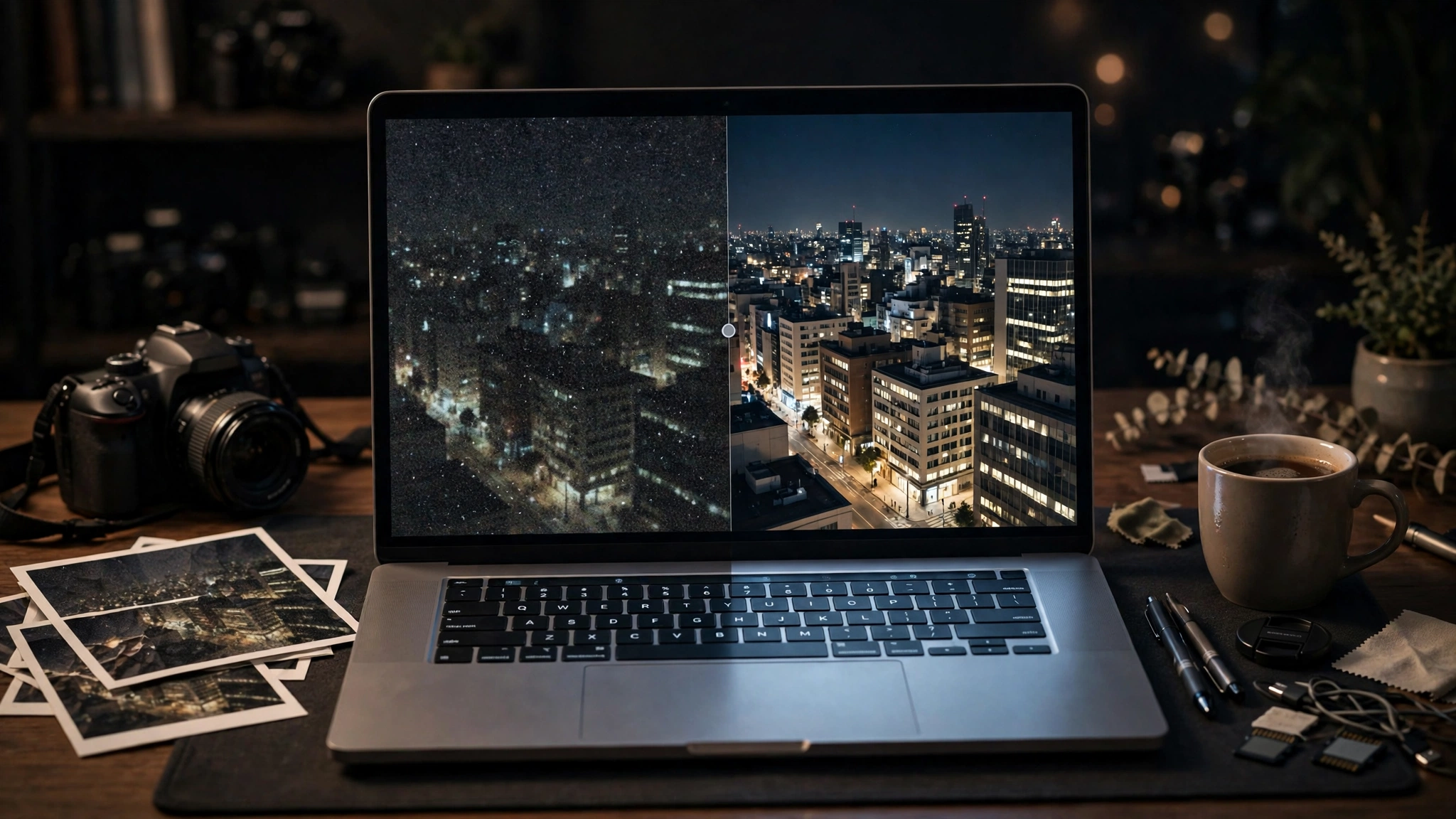
Learning how to fix grainy photos is easier than most people expect, and most grain is at least partly fixable. A grainy photo is a noisy photo: tiny speckles of brightness and colour that appear when your camera did not get enough light, or pushed its sensor too hard to compensate. This guide covers how to fix grainy pictures on your phone and computer, how to remove grain from photos without turning skin into wax, and how to avoid the problem next time.
Key takeaways
- Diagnose the cause first: high ISO, low light, a heavy crop, or heavy compression each need a slightly different fix.
- Always work on a copy, and keep the original untouched.
- Phone editors handle mild grain well; desktop tools and AI denoise handle severe grain better.
- Less is more: removing all grain destroys detail, so aim for cleaner, not perfectly smooth.
- Prevention beats repair — more light or a steadier shot saves more quality than any editor can restore.
Direct answer: To fix grainy photos, copy the original, then reduce noise gently: on a phone, use your built-in editor or a photo app’s noise reduction slider; on a computer, use Lightroom’s Denoise or Photoshop’s Camera Raw controls; for severe grain, use an AI denoise tool. Stop as soon as the grain stops distracting from the subject — pushing further costs detail you cannot get back.
Table of Contents
Why are my photos grainy?
Photos get grainy when the image signal is weak compared to the noise in it. The most common cause is high ISO: ISO controls sensor sensitivity to light, and in a dark room your phone or camera raises it automatically so the photo is bright enough — but high ISO amplifies sensor noise along with the image, which is why grain shows up most in shadows, where the signal is weakest.
Low light is the root cause behind most high-ISO grain: night shots, dim indoor photos, and concerts all force the camera to work harder. Cropping is a second cause — enlarge a small crop and you enlarge the grain too. A third is compression: photos sent through messaging apps lose fine detail, and the blocky look left behind is often mistaken for sensor grain.
The honest rule: noise reduction can reduce grain, but it cannot invent detail never captured. A face buried in heavy noise can only be made cleaner and smoother — the goal is a photo that looks good, not one with zero grain.
Before you start: the quick checklist
- Work on a copy. Duplicate the photo first, or use an editor that keeps edits non-destructive.
- Start from the best file you have. Edit the original, not a copy already compressed by a messaging app.
- Zoom to 100%. Judge noise at full size, not on a small phone preview.
- Fix exposure first. Brightening a dark photo makes grain more visible.
- Don’t over-smooth skin. If faces look waxy and plastic, you have gone too far.
- Compare before and after. If hair or fabric texture has vanished, pull the strength back.
How to fix grainy photos on iPhone?
To fix grainy photos on iPhone, start with the built-in Photos editor for mild grain, and move to a dedicated denoise photo app only if the grain is heavy:
- Duplicate the photo first (Share, then Duplicate) so the original stays safe.
- Correct the exposure gently — avoid pushing shadows hard, as that reveals more grain.
- Open the copy in an editor with a noise reduction control, such as Lightroom Mobile or Snapseed.
- Increase noise reduction gradually until the grain stops catching your eye, then stop.
- Add a little sharpening afterwards, then export at the highest quality available.
If you shoot in low light often, see our guide to the best AI apps for iPhone, several of which include AI photo cleanup.
How do I fix grainy photos on Android?
Fixing grainy photos on Android works the same way. Google Photos, Samsung Gallery, and most manufacturers’ editors include noise reduction controls, sometimes called Denoise or Noise reduction. Duplicate the photo, correct the exposure gently, then move the slider in small steps, watching the darkest areas — shadows are where grain shows most. Add a touch of sharpening, compare with the original, and save. If the grain is severe, move to a desktop editor or AI denoise app rather than pushing the phone slider to its maximum, which smears detail.
How do I fix grainy photos in Lightroom?
Lightroom is the best tool for most people learning how to fix noisy photos properly, because it separates colour noise from brightness noise and lets you protect detail while you clean. See Adobe’s Lightroom Denoise help page for the official walkthrough.
- Import the original (ideally a RAW file if your camera or phone shot one) and work non-destructively.
- Set exposure and white balance first, so you judge noise at the photo’s final brightness.
- Use Denoise (the Enhance / Denoise option in current versions) for a strong AI-assisted clean-up, or the manual Noise Reduction sliders for finer control.
- Use Luminance for brightness grain and Colour for coloured speckles in shadows, keeping Detail up so edges survive.
- Sharpen lightly afterwards, with Masking set so sharpening applies to edges, then check at 100% zoom before exporting.
How do I fix grainy photos in Photoshop?
Photoshop gives you two good routes to denoise a photo: Camera Raw, which shares Lightroom’s noise controls, and Photoshop’s own filters for targeted work. Open the photo in Camera Raw (Filter, then Camera Raw Filter) and use the same approach: exposure first, then the Detail panel’s sliders, with Detail held up to protect texture. For a photo only grainy in one area — a dark background, for example — use a mask or selection so noise reduction applies only where needed. Alternatively, duplicate the layer, apply Reduce Noise (Filter, then Noise, then Reduce Noise) on the copy, and lower the layer opacity until grain is reduced but detail survives.
Can AI fix grainy photos?
Yes — AI denoise tools are genuinely better than old-fashioned noise reduction at how to make grainy photos clear, especially in severe cases, because they have been trained on what clean photos look like and can tell grain from real texture more accurately than a simple blur. AI denoise in Lightroom, dedicated tools such as Topaz Photo AI, and AI features inside phone apps can rescue photos manual sliders would have ruined a few years ago.
But AI denoise has honest limits. It cannot recover detail never recorded — it makes a plausible, cleaner version, so very heavy grain still leaves a softer image than a clean original. It can invent texture that was not there, smoothing skin too far or turning foliage into a watercolour wash. And it works best when the rest of the photo is good: a well-exposed, in-focus photo cleans up far better than a dark, blurry one. Always compare AI output against the original.
For a broader view, see our guide to the best AI tools, and for creative AI image tools rather than cleanup, our guide to art idea generators.
Methods compared: which fix should you use?
| Method | Best for | Detail loss risk | Cost note |
|---|---|---|---|
| Phone built-in editor | Mild grain, quick sharing | Low, if used gently | Free, already on your phone |
| Phone photo app | Moderate grain on the go | Low to medium | Free tiers available |
| Lightroom / Camera Raw manual controls | Controlled, precise cleanup | Low to medium | Paid subscription |
| Lightroom AI Denoise | Severe grain, RAW files | Medium — can over-smooth textures | Included with a Lightroom subscription |
| Photoshop selective denoise | Grain in only part of the photo | Low, because it is targeted | Paid subscription |
| Dedicated AI denoise tool | Very grainy photos | Medium — can invent texture | Paid, often with a free trial |
Can a very grainy photo be fully fixed?
Not fully, no. Noise reduction always trades grain against detail: the stronger the reduction, the more fine texture disappears. A very grainy photo can usually be made much better — cleaner, more shareable, good enough for social media or a small print — but not as sharp as the same shot taken in good light.
Still, a heavily grainy photo can be made to work: black and white hides colour noise, the ugliest part of grain; cropping tighter draws the eye away from noisy backgrounds; and sharing at social-media sizes hides grain that looks terrible at full zoom.
How do I avoid grainy photos next time?
Prevention is where the biggest gains live: grain comes from a weak signal, so every tip here is about giving your camera more light or asking it to work less hard:
| Situation | Setting to change | Why it helps |
|---|---|---|
| Indoor evening photo | Turn on more lamps, or move near a window | More light means a lower ISO and less noise |
| Night or concert shot | Use Night mode, or hold the phone steady against something solid | A longer exposure gathers more light instead of raising ISO |
| Dark subject, bright background | Tap to expose for the subject, or add light on it | Avoids a dark, noisy foreground |
| Heavy crop planned | Move closer, or shoot at the highest resolution available | Less cropping means less magnified grain |
| Manual control available | Set the lowest ISO that still gives a sharp, bright photo | ISO is the direct dial for grain — keep it as low as the light allows |
Two habits cover most situations: add light before you raise ISO, and keep the camera still — a steady phone or tripod lets the camera use a longer exposure instead of a noisier high ISO. See Google Photos help on editing photos for what phone editors can do.
Frequently asked questions
How do I reduce photo noise without losing detail?
Denoise gently on a copy of the original, protect texture with the Detail slider where available, sharpen lightly afterwards, and stop as soon as the grain stops distracting — a little remaining grain beats a waxy, over-smoothed photo.
Is it better to shoot in RAW to avoid grain?
RAW does not prevent grain, but it gives noise reduction more data, so cleanup is cleaner. If your phone or camera offers RAW, use it in low light.
1 thought on “How to Fix Grainy Photos in 2027: Remove Noise Without Losing Detail”