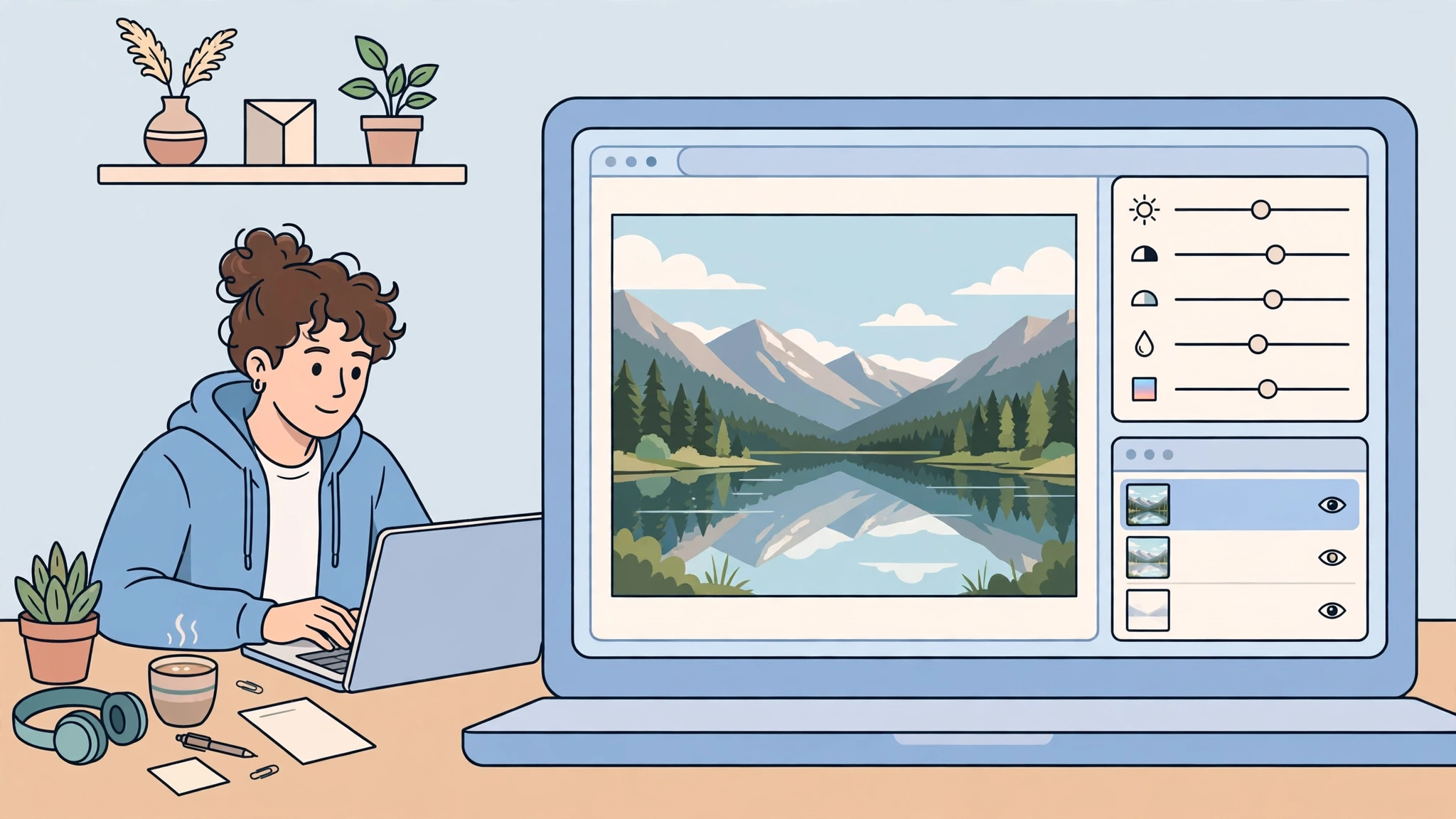
An online photo editor promises something desktop software cannot: open a browser tab, edit a photo, close the tab, nothing installed. The catch is that “online photo editor” now covers at least four different kinds of tool — a layered Photoshop-style editor, a quick-fix enhancer, an AI editor, and a design tool that happens to edit photos. Picking the wrong kind wastes more time than installing an app would have. This guide to the best online photo editor options in 2027 sorts them by the job, so you open the right tab first time.
Key takeaways
- The best online photo editor depends on the job: layered editing, quick fixes, AI edits and design are different tools.
- For Photoshop-style work in a browser, Photopea is the standout — it opens PSD files with layers, masks and adjustments.
- For a fast fix with no learning curve, Fotor, BeFunky and Pixlr beat a full editor every time.
- For AI edits (background removal, object removal, generative changes), check the free allowance and the export rules before you edit — a free edit is not always a free download.
- For photos that become social posts, flyers or presentations, Canva and Adobe Express are the practical picks.
Direct answer: The best online photo editor in 2027 for most people is Photopea if you need real layered editing, Canva if you need a finished design, and Fotor or BeFunky if you just need a photo fixed fast. If your edit is an AI job — remove a background, erase an object, upscale a photo — start with a dedicated AI editor and check its free export limit first.
Table of Contents
What is the best online photo editor?
There is no single best online photo editor, because the tools do different jobs. A layered editor gives you control: layers, masks, selections and adjustment layers, the way Photoshop does. A quick editor gives you speed: crop, brightness, colour and filters in a few clicks. An AI editor gives you magic tricks: remove a background, erase a person, or restyle a photo from a prompt. A design editor gives you a finished product: the edited photo already inside a social post, poster or presentation. Before you compare names, name your job. If you open a layered editor for a quick brightness fix, you will spend twenty minutes learning an interface for a twenty-second job. If you open a quick editor for a layered composite, you will hit its ceiling in minutes.
Which online photo editor is best for beginners?
For beginners, the best online photo editor is the simplest one that finishes the job: Fotor, BeFunky or Pixlr Express for quick edits, and Canva if the photo needs to become a design. These tools guide you with sliders and presets instead of panels and menus. Photopea is powerful, but its Photoshop-style interface is a poor first editor — save it for the day you need layers. Beginners should also favour tools that do not require an account for a first edit, so a bad first experience costs nothing.
Which online photo editor opens PSD files?
Photopea is the clear answer here. It opens and saves PSD files in the browser, with layers, masks, smart objects and adjustment layers largely intact, and it reads many other formats including RAW files. That makes it the only serious browser option for anyone who receives PSD files or needs to hand a layered file back to a Photoshop user. No quick editor or design tool matches it for layered work. If PSD support is your requirement, the comparison ends at Photopea — the question then is only whether you can tolerate its ads on the free plan.
Best online photo editors compared
The table describes free plans qualitatively, because limits and terms change. Always confirm current terms on the tool’s own page before relying on it for client work.
| Editor | Best for | Free plan | Watch out for |
|---|---|---|---|
| Photopea | Layered, Photoshop-style editing; PSD files | Full editor, ad-supported | Ads; AI features have separate limits |
| Canva | Photos inside social posts, flyers, presentations | Free design tools, limited AI allowance | Background remover and premium assets are paid |
| Adobe Express | Design-led edits in the Adobe ecosystem | Free plan with templates and edits | Some AI and premium features are paid |
| Fotor | Quick enhancement, portrait retouch, batch edits | Free edits, watermark-free exports on the free plan per its FAQ | AI credits are limited; deep layered editing is weak |
| BeFunky | Collages, quick edits, batch workflows | Wide free selection, no account needed for many tools | Advanced and AI features are paid |
| Pixlr | Quick online edits with AI tools | Free editor with AI tools | Ads and limited saves; AI uses credits |
| Clipdrop | Background removal, cleanup, cutouts | Daily allowances for listed tools | Some generative tools require a paid plan |
Read the “Watch out for” column before you start. The most common disappointment with a free online photo editor is not the editing — it is discovering at export time that the feature you used, the resolution you want, or the watermark-free download sits behind a paywall.
Is there a free online photo editor with no watermark?
Yes, several. Photopea’s free editor exports without a watermark (you see ads instead). Fotor states that its free plan allows watermark-free exports. Canva does not watermark exports made with free elements. The watermark trap appears mainly on tools whose free tier is really a trial: the edit looks fine, but the download is watermarked or low-resolution until you pay. The defence is the same as with any free tool: before editing, check whether you can export the finished photo at full resolution, without a watermark, at no cost. If the answer is no, the tool is a preview, not a free editor. For AI-generated imagery to pair with your edits, see our free AI photo generator guide.
Can I edit photos online without an account?
Often, yes — and it is a useful first test of a tool. Photopea and BeFunky let you edit without signing up for many tasks, which means you can judge the interface before handing over an email address. Canva, Adobe Express and most AI editors require an account, because they need to track your designs, your AI allowance, or both. An account is not a red flag by itself, but an editor that demands an account before you can even try a crop is telling you something about its priorities. Start with a no-account tool for a quick job, and only create an account when the tool has earned it.
Is an online photo editor safe for private photos?
It depends on where the editing happens, and this is the question most comparison lists skip. Some browser editors, notably Photopea, run largely on your own device: your photo does not need to leave your computer for ordinary edits. AI editors and cloud editors usually upload your photo to a server, process it there, and return the result. That matters for private photos — family pictures, client work, identity documents, or anything sensitive. Before uploading a private photo, check the tool’s privacy terms: does it store your uploads, does it use them to train models, and can you delete them? For sensitive images, prefer an editor that processes on-device, or edit locally with a desktop app. Never upload identity documents or confidential client photos to a free AI editor you have not vetted. For fixing damaged photos, see our guides to fixing grainy photos and free video editing software for the video side.
How to edit a photo online in 10 minutes
- Pick by job, not by list position. Layered work → Photopea. Quick fix → Fotor or BeFunky. Design → Canva or Adobe Express. AI trick → a dedicated AI editor.
- Check the export before you edit. Confirm a watermark-free, full-resolution download is free for the feature you are about to use.
- Work on a copy. Keep the original untouched, so a bad edit or an over-aggressive AI change costs nothing.
- Fix in order: crop, straighten, exposure, colour, sharpen. Cropping first means every later adjustment works on pixels you will keep.
- Export once, at the right size. Export a master copy, then resize or compress copies for each destination — repeated saves degrade quality.
- Check the result at 100%. Zoom in and look at faces, text and edges. AI edits in particular can invent odd textures that only show up close.
That workflow also explains why the “best” editor changes with the photo. A portrait that needs a background removed, a product shot that needs a layered composite, and a holiday snap that needs a brightness lift are three different jobs, and the honest answer is three different tabs. The roundups that rank one editor as best for everything are ranking for clicks, not for your photo. For a broader tool comparison, see the Magic Hour guide to free AI photo editors and the Vandelay Design roundup of online photo editors.
Frequently asked questions
What is an online photo editor?
A photo editor that runs in your web browser instead of as installed software. You upload or open a photo, edit it in the tab, and download the result — no installation, and usually no need for a powerful computer.
Do online photo editors work on phones?
Many do, but layered editors such as Photopea are much easier on a computer with a mouse and a large screen. For phone edits, use a quick editor or a dedicated mobile app, and save layered work for a desktop browser.
Can an online photo editor replace Photoshop?
For most everyday editing, yes — Photopea covers a large share of Photoshop’s layered workflow in a browser. For heavy professional work, print colour management, and large batch automation, desktop Photoshop still leads. Most people never need that ceiling.
Are free online photo editors really free?
The editing is usually free; the limits appear at export, in AI allowances, in ads, or in premium features. Check the export rules for your exact edit before you start, and keep an eye on free-plan changes, which happen often.
2 thoughts on “Best Online Photo Editors in 2027: Edit in Your Browser, No Install Needed”