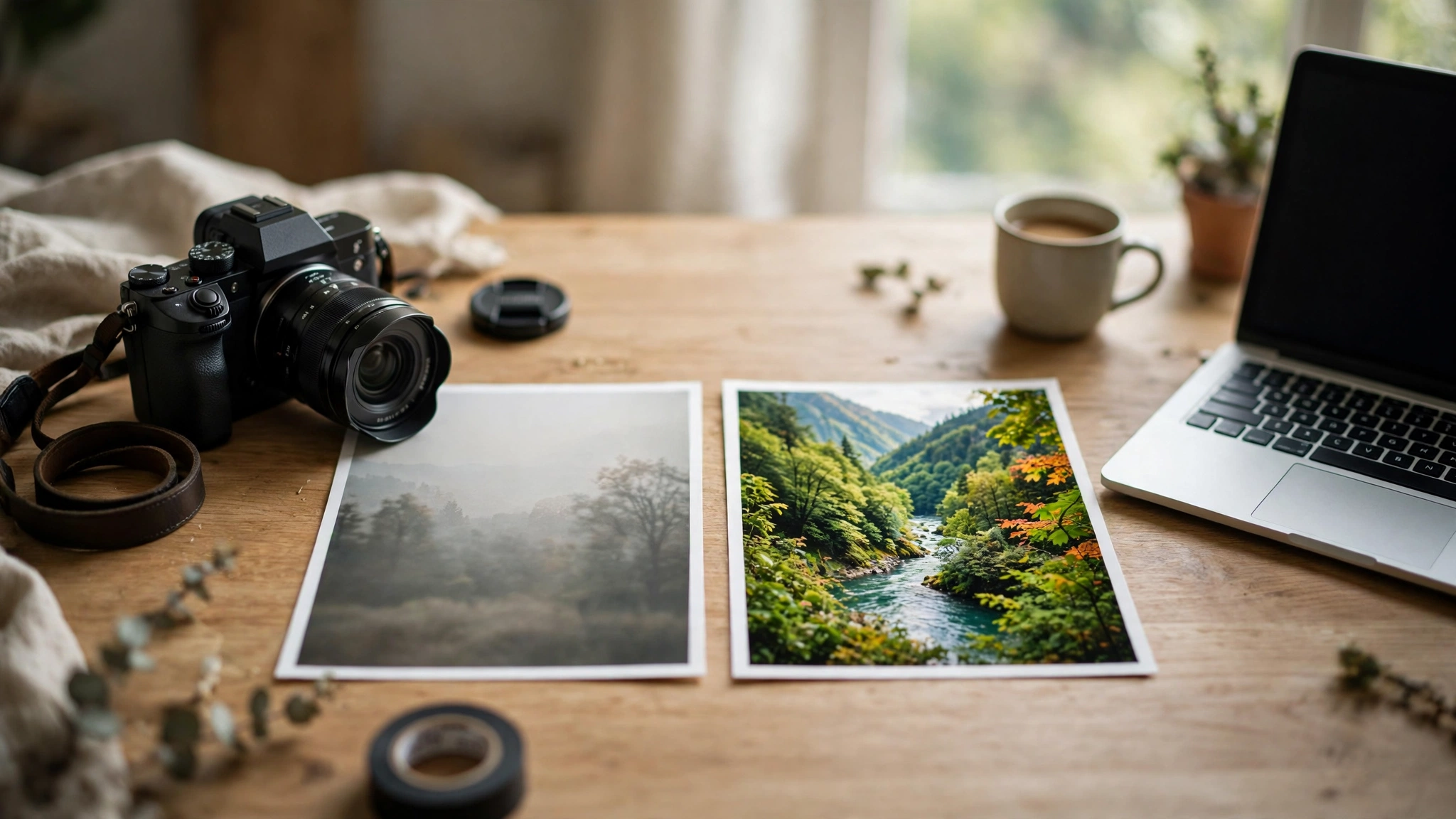
How Can I Enhance Photo Quality? The Short Answer
To enhance photo quality, use a free AI photo enhancer matched to your actual problem: Upscayl for free desktop upscaling, Remini for faces, Let’s Enhance for web upscaling, and Fotor or Pixelcut for quick online fixes. AI enhancement can sharpen soft detail, reduce noise, fix flat lighting, and make a small image larger — but it cannot recover detail that was never in the photo. The trick is picking the tool for the job you have, not the tool at the top of a ranked list, and knowing the free-tier traps — watermarks, export limits, and sign-ups — before you upload anything. This guide matches each common photo problem to the best free tool, explains what enhancement can and cannot do, and gives you a simple workflow that works with any of them.
Table of Contents
Key Takeaways
- To enhance photo quality, first name the problem: blur, noise, low resolution, dull light, or an old faded print — each one has a different best tool.
- Upscayl is the best truly free option: open source, desktop, no watermark, no sign-up, up to 4x upscaling.
- Remini is the best for face detail on portraits, but its free tier watermarks your exports.
- Let’s Enhance, Pixelcut, and Fotor are the best quick web options — check their free limits before you rely on them.
- AI enhancement sharpens and cleans what is already in the photo; it cannot invent detail that was never captured.
- Always keep the original file, enhance a copy, and check the result at full size before you share or print it.
What Can AI Photo Enhancement Actually Fix?
Before you pick a tool, it helps to know what “enhance photo” really means. An AI photo enhancer does four jobs, and most tools are good at some of them and weak at others:
- Sharpening: recovering soft edges and blurry detail — the most common fix, and the one most tools do well.
- Denoising: removing the grain and speckles that appear in low-light photos. If your photo is grainy, our guide on how to fix grainy photos goes deep on this exact problem.
- Upscaling: making a small image larger without it turning into a blocky mess. If your photo is tiny and pixelated, our guide on how to fix pixelated photos covers the repair side in detail.
- Light and colour: fixing flat lighting, dull colours, and poor contrast — the difference between a photo that looks “taken” and one that looks finished.
The honest limit applies to all of them: an AI enhancer works with the information in your photo. It can clean up noise, sharpen an edge, and guess what a blurry patch probably looked like — and modern tools guess very well. But it cannot recover a face that was out of focus, or text that was never readable. If a tool promises to turn a 200-pixel thumbnail into a billboard, it is promising something physics does not allow. Judge every result at full size, on a real screen, before you trust it.
How to Enhance Photo Quality: Match the Tool to the Problem
The top results for “enhance photo” are mostly ranked lists, and most of them are written by the tools themselves — one roundup ranks its own tool first, another does the same. That is not a comparison; it is an advert. The table below does it differently: it starts from the problem you actually have.
| Your problem | Best free tool | Why it fits |
|---|---|---|
| Small, low-resolution photo | Upscayl | Free, open source, desktop, up to 4x upscale, no watermark |
| Blurry or soft faces | Remini | Best face-detail recovery on the market |
| Old, faded family photo | Remini or Fotor | Face restoration plus colour and scratch repair |
| Quick fix in the browser | Pixelcut or Let’s Enhance | No install, upload and enhance in a minute |
| Batch of product photos | Let’s Enhance | Batch processing built in |
| Enhancement inside full editing | Fotor | Enhancement plus cropping, resizing, and design tools |
| Professional, print-quality work | Topaz Photo AI | Highest quality output — but paid only |
The Best Free AI Photo Enhancers in 2027
These are the tools that matter for most people, compared honestly — including what the free tier actually costs you in watermarks, limits, and sign-ups. Free allowances change often, so check each tool’s own site before you commit to a workflow.
Upscayl: Best Truly Free Photo Enhancer
Upscayl is the only tool on this list that is free without an asterisk. It is open source, runs on your own computer (Mac, Windows, or Linux), and has no watermark, no sign-up, and no limit on how many photos you process. It upscales images up to 4x using AI models like Real-ESRGAN, and because it runs locally, your photos never leave your machine. The trade-off is that it is pure upscaling: it will not change backgrounds, remove objects, or fix colours. But if your problem is “this photo is too small”, Upscayl is the answer, and it costs nothing. Download it from Upscayl’s official site.
Remini: Best AI Photo Enhancer for Faces
Remini is the best tool on this list for one specific job: recovering detail in faces. If you have a soft portrait, a blurry family photo, or an old print where the faces have gone mushy, Remini’s face-enhancement is noticeably better than a general upscaler at rebuilding eyes, skin texture, and hair. It works on mobile and on the web. The catch is the free tier: it watermarks your exports and limits how many photos you can process a day, so it is best for the few photos that matter — not for a whole album. Try it at Remini’s official site and check the result at full size before you pay for anything.
Let’s Enhance: Best Web Enhancer for Batches
Let’s Enhance has been around for years, and it is still one of the most reliable web upscalers. It offers robust upscaling with noise reduction and tone correction, and it handles batches — upload a set of product shots or a folder of photos and process them together. The free tier gives you a limited number of images to enhance, which is generous for testing it out or for occasional use, but not enough for a working photographer’s daily load. See the current free allowance on Let’s Enhance’s site before you start a big batch.
Fotor: Best All-in-One Online Photo Editor
Fotor is more than an upscaler — it is a full online photo editor with AI enhancement built in. That matters when enhancement is one step in a bigger job: you sharpen the photo, then crop it, adjust the light, and resize it for the platform you need, all in the same browser tab. Its free plan covers the basic enhancement and editing tools, with the heavier AI features behind a subscription. If you want one web tool that does the whole job rather than a single-purpose enhancer, Fotor is the practical choice. Find it at Fotor’s official site.
Pixelcut and Krea: Best Quick Web Fixes
Pixelcut is the fastest option on this list for a single photo: open the site, upload, enhance, download. Its free version handles quick jobs well, though some exports carry a watermark, so check the result before you use it anywhere public. Krea is more powerful than a conventional one-click enhancer — it can both enlarge an image and reconstruct additional visual detail in real time, and its free plan gives you a daily allowance of compute units. Both are worth knowing about, and both are genuinely useful when you need one photo fixed now rather than a workflow. Visit Pixelcut for the quick fix.
Topaz Photo AI: Best Paid Enhancer for Professionals
Topaz Photo AI is the tool professional photographers reach for, and it is the only one on this list with no useful free tier — it offers a trial, then a paid licence. It remains the gold standard for professional use because it combines sharpening, denoising, and upscaling in one tool with fine control over each, and its output quality is the highest of any tool here. If you sell your photos or print them large, it is worth the money. If you are enhancing a few phone photos for social media, it is far more tool than you need — start with Upscayl instead. See Topaz Photo AI’s official page for current pricing.
How to Enhance a Photo in 5 Steps
The tool matters less than the workflow. Follow these steps with whichever enhancer you chose, and you will get a better result than someone who just clicks “enhance” and hopes:
- Keep the original safe. Make a copy of the photo and enhance the copy. Never overwrite your only original — enhancement is a one-way process, and you may want to try a different tool later.
- Name the problem first. Is it blurry, noisy, too small, too dark, or faded? Pick the tool that fixes that problem, not the one with the loudest advert.
- Start with the lightest setting. Run the enhancement at its default or lowest strength first. Over-enhanced photos look waxy and artificial — a light pass almost always looks more natural.
- Check the result at full size. Zoom to 100% and look at faces, edges, and text. Enhancers can invent plausible-looking detail that is wrong on close inspection — a classic giveaway is text that looks sharp but reads as gibberish.
- Export at the size you need. A photo for Instagram does not need a 4K export, and a print does. Exporting larger than you need wastes storage and can make flaws more visible, not less.
Do Free Photo Enhancers Add Watermarks?
Some do, and this is the free-tier trap most people discover too late. Upscayl never watermarks anything — it is open source and runs on your machine. Remini watermarks free exports, which is why it is best for testing rather than finishing. Upscale.media adds a watermark on larger free upscales. Pixelcut’s free version often applies watermarks to enhanced images. The rule is simple: before you enhance a whole batch of photos, enhance one, download it, and check for a watermark. If there is one, either pay for the tool or switch to a watermark-free option like Upscayl. A watermarked photo is worse than the blurry original.
How to Enhance a Photo on Your Phone
Most of the tools above work in a mobile browser, and Remini is built for phones first — it started as a mobile app for face enhancement and is still the easiest way to fix a portrait on the go. The workflow is the same as on a desktop: upload a copy, enhance, check at full size, and save. Two phone-specific warnings: first, enhancing on a small screen hides flaws, so pinch-zoom to full size before you decide the result is good. Second, free mobile apps are the worst offenders for watermarking and for pushing subscriptions — read the export screen carefully before you save. If you want a phone workflow without the traps, use your phone’s browser to open Upscayl’s desktop-style tools on a computer later, or use a web tool like Pixelcut that shows you the watermark before you download.
Enhance Photo vs Upscale Photo: What Is the Difference?
People use these two terms as if they meant the same thing, and they do not. Upscaling means making an image larger — more pixels. Enhancing means making it look better — sharper, cleaner, better lit. Most AI tools do both at once, which is why the terms blur together, but the distinction matters when you choose: if your photo is already big enough and just looks dull, you need enhancement (light, colour, sharpness), not upscaling. If your photo is tiny, you need upscaling first, and enhancement second. Upscayl is an upscaler; Fotor and Luminar are enhancers; Remini and Topaz do both. Knowing which job you need is how you pick the right tool the first time.
Frequently Asked Questions
How can I enhance photo quality for free?
Use Upscayl — it is free, open source, and has no watermark or sign-up. For faces, try Remini’s free tier; for quick web fixes, try Pixelcut or Let’s Enhance. Always check the export for a watermark before you use the result.
Can AI really enhance a blurry photo?
Yes, up to a point. AI can sharpen soft edges, reduce noise, and reconstruct plausible detail, and modern tools do this very well. But it cannot recover detail that was never captured — a face that was out of focus will never be perfectly sharp, no matter what the tool promises.
What is the best free AI photo enhancer?
Upscayl is the best truly free option: no cost, no watermark, no limits. For portraits, Remini gives the best face results but watermarks free exports. The right choice depends on your photo — match the tool to the problem.
Do free photo enhancers add watermarks?
Some do. Upscayl never does. Remini, Pixelcut, and Upscale.media watermark some or all free exports. Always enhance one photo first and check the download before processing a batch.
Can I enhance an old photo?
Yes — old, faded prints are one of the best uses for AI enhancement. Remini is strong on face restoration in old photos, and Fotor can help with colour and scratches. Scan the print at the highest resolution you can before you enhance it; a good scan gives the AI far more to work with.
At Digital Discoverist, we test the AI tools that are actually worth your time — this guide is part of our Discover Tools series, where we compare the tools behind the headlines so you can pick the right one first time.
3 thoughts on “How to Enhance Photo Quality in 2027: Free AI Tools That Actually Work”